🎉 Organiser Support Hub
How can we help you?
Step-by-step guides for planning your event on Papohapo: your event plan, quotes, agreements, payments and guests.
New here? Start with these
The essentials, in the order you will need them.
Browse by topic
Every guide, grouped by what you are trying to do.
Getting Started
New to Papohapo? Start here.
Planning Your Event
Create your event and build your plan.
Finding Service Providers
Request, compare and choose quotes.
Agreements
Review, agree and sign with your provider.
Payments
Deposits, balances, approvals and your wallet.
Event Page & Guests
Your event page, RSVPs, gifts and the big day.
Your Account
Sign-in, your details and the /my portal.
Frequently asked questions
Quick answers. Each links to the full guide.
Is Papohapo free for organisers?
Yes. Planning events, requesting quotes and signing agreements are free. You pay your service providers the amounts you agree, and nothing extra.
How do I pay a service provider?
Open your event plan and choose Payments. If Papohapo handles payments, approve each payment when it falls due and Papohapo pays the provider from your Event Wallet. If you pay directly, pay the provider and mark the payment as paid. See How payments work.
Where can I see my payments?
In your event plan under Payments. Your Organiser Centre also shows money paid so far and anything waiting for approval.
How do I change an agreement?
Before it is signed, edit the sections of a draft, or accept or decline changes your provider suggests during review. After both parties sign, changes need a formal amendment. See Respond to suggested changes.
Why can I not request quotes for my event?
Quotes cannot be requested after the quote cut-off, which is the quote deadline or the event start, whichever is earlier. Each cost item can also have only one open request. Update the dates in Event info & team if your event has moved.
Why does my request say it is being prepared?
Papohapo prepares every request before publishing it to providers. When its status is Open for Quotes, providers can quote and you can invite providers.
What does Verified mean?
The provider has submitted their identity and business details, and Papohapo has reviewed and approved them. See What “Papohapo Verified” means.
Can my family or committee help plan?
Yes. Add them under Planning team with a role. Committee members can view and comment without editing. See Invite your planning team.
Can I cancel an agreement?
You can delete a draft, or cancel with a reason until both parties have signed. See Cancel or delete an agreement.
Do my guests need an account?
No. Guests can view your event page, RSVP and use the gift registry without an account.
I did not receive an email from Papohapo
Emails come from info@papohapo.com. Check your spam or promotions folder and add the address to your contacts.
How do I reset my password?
Use Reset password with the email you registered with, then follow the link we send you.
Still need help?
Talk to a person, ask the community, or send our team a message.
What is this?
Papohapo is where you plan an event from first idea to the day itself. Your event plan holds your tasks, budget, quote requests, agreements, payments and guest list in one place.
Why it matters
Instead of juggling calls, spreadsheets and WhatsApp threads, every decision and every shilling is recorded where you and your planning team can see it.
How to do it
Create your event
Tell us the occasion, date, venue and guest numbers. Your plan starts with tasks and budget lines suggested for that kind of event.
Request quotes
Ask verified service providers to quote for each service, or request a quote for a ready-made package.
Compare and choose
Quotes arrive side by side. Shortlist your favourites and select a finalist.
Agree and sign
Your chosen quote becomes a service agreement. You and the provider review the terms and both sign on Papohapo.
Pay and track
Each agreement has a payment schedule. Approve payments when they fall due, or record payments you make yourself.
Welcome your guests
Publish your event page, collect RSVPs and gift selections, and check guests in on the day.
Planning an event on Papohapo is free. You pay your service providers the amounts you agree, and nothing extra.
What’s next?
What is this?
Your Papohapo account gives you an Organiser Centre and lets you save event plans, request quotes and sign agreements.
Why it matters
Quotes, agreements and payment updates are tied to your account and sent to your email, so use an address you check often.
How to do it
Open Get Started
Choose Get Started Free at the top of any page, or go to papohapo.com/join.
Enter your details
Add your name and email address and choose a password.
Sign in next time
Choose Sign in at the top of the page. On a phone it is inside the ☰ menu.
Forgot your password? Use Reset password with the email you registered with.
What’s next?
What is this?
The Organiser Centre is the first screen you see after signing in. It shows every event you are planning and anything waiting for you.
Why it matters
It answers “what do I do next?” at a glance: new quotes to compare, agreements to sign, payments to approve and deadlines coming up.
How to do it
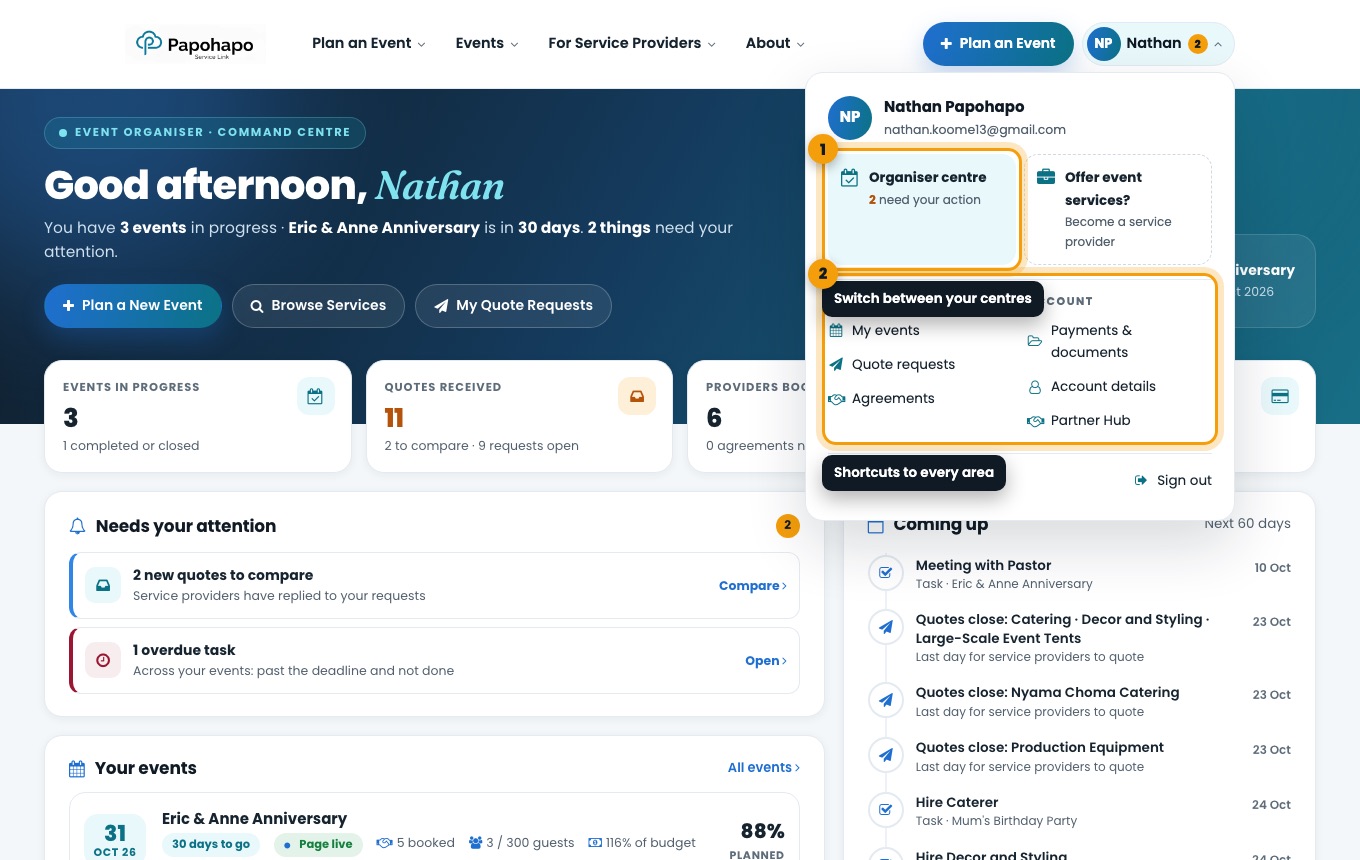
Open it from your name
Choose your name at the top right and select Organiser centre, or go to papohapo.com/organizer-view.
The account menu switches between your centres and links to every area. Read the top of the page
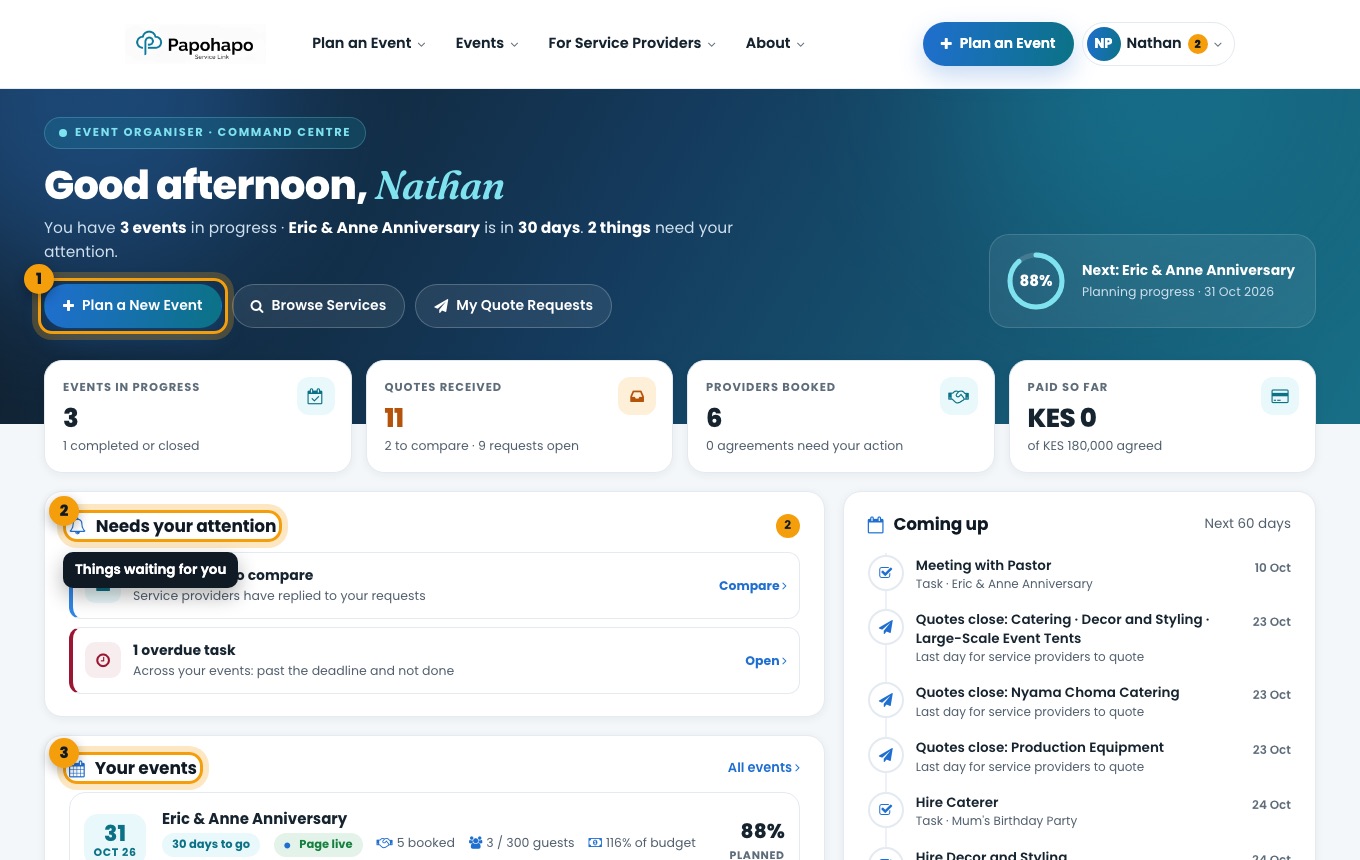
The greeting tells you how many events are in progress, when the next one is and how many things need your attention. Use Plan a New Event to start another plan.
Your Organiser Centre with its “Needs your attention” list. Work through “Needs your attention”
Each item has a button that takes you straight to the right place, for example Compare for new quotes or Open for an overdue task.
Open an event
Under Your events, select an event to open its event plan.
What’s next?
What is this?
If you also offer event services, your account has a Provider Centre as well as an Organiser Centre.
Why it matters
Keeping the two apart means your event planning and your business never get mixed up.
How to do it
Use the account menu
Choose your name at the top right, then Organiser centre or Provider centre.
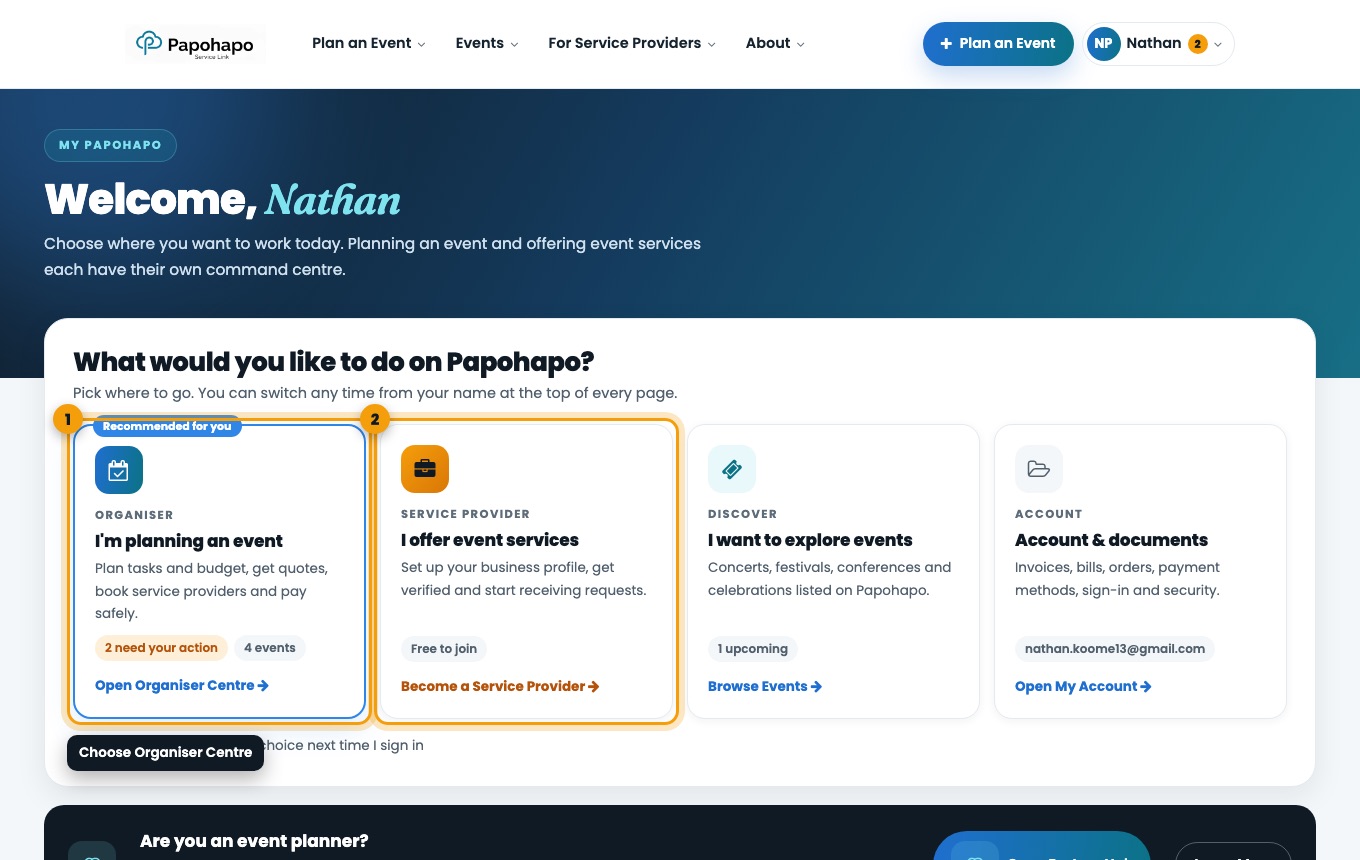
Or use My Papohapo
Go to My Papohapo and pick where you want to work. Tick Take me straight to my choice next time I sign in to skip this step in future.
My Papohapo lets you choose where to start.
What’s next?
What is this?
Creating an event sets up your event plan, the workspace for everything else.
Why it matters
The occasion, date, guests and services you choose here are used to suggest tasks and budget lines, so you start with a plan instead of a blank page.
How to do it
Open My Events
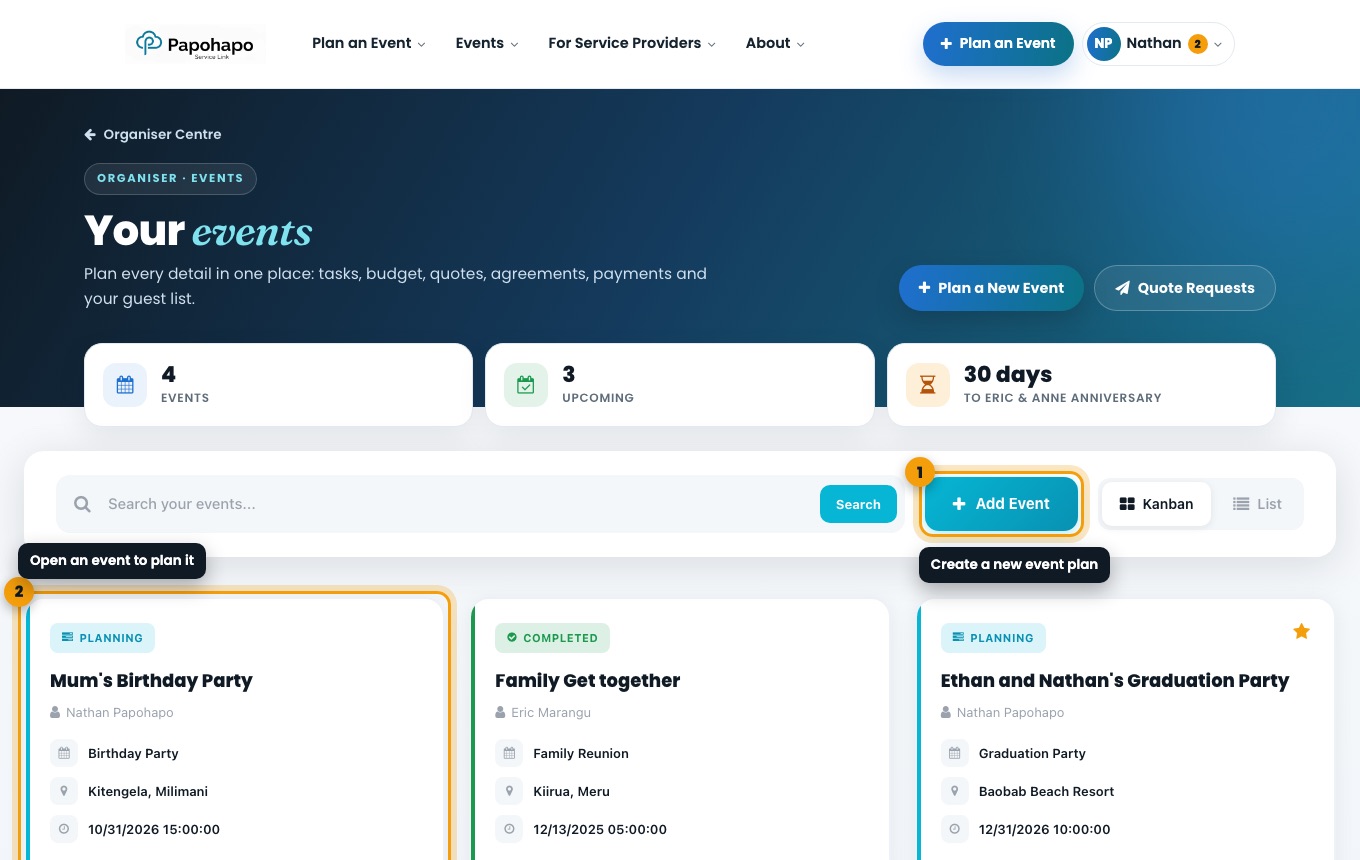
Choose Plan an Event at the top of any page, or Plan a New Event in your Organiser Centre. On My Events, choose Add Event.
My Events lists every event you are planning. Step 1: Event info
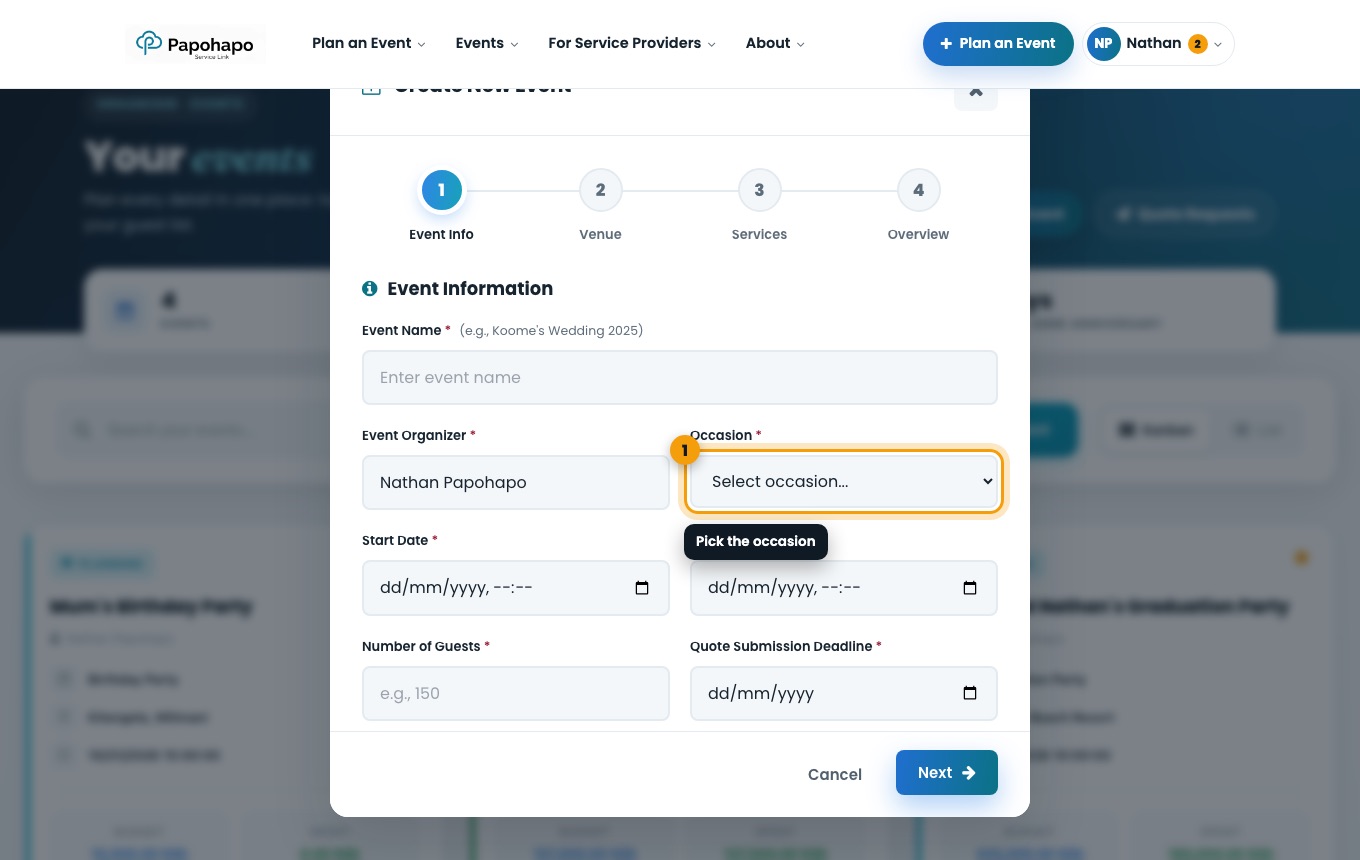
Enter the event name, choose the Occasion, and add the start and end dates, number of guests and the Quote Submission Deadline, the last day service providers can quote.
The Create New Event window. Step 2: Venue
Add the venue name and location. You can change it later in Event info & team.
Step 3: Services
Tick the services you need. Services recommended for your occasion are suggested for you. Each service becomes a task, and most also get a budget line.
Step 4: Overview
Check the summary and create the event. Your new event plan opens.
Set the quote deadline a few weeks before the event, so providers have time to quote and you have time to compare.
Quote requests close on the quote deadline or when the event starts, whichever comes first.
What is this?
Your event plan is organised into the order you will work through it: 1 Plan, 2 Service providers, 3 Money and 4 Guests, plus your Event day tools.
Why it matters
Following the steps in order is the fastest way to a well-planned event, and the progress ring shows how far along you are.
How to do it
Start on Overview
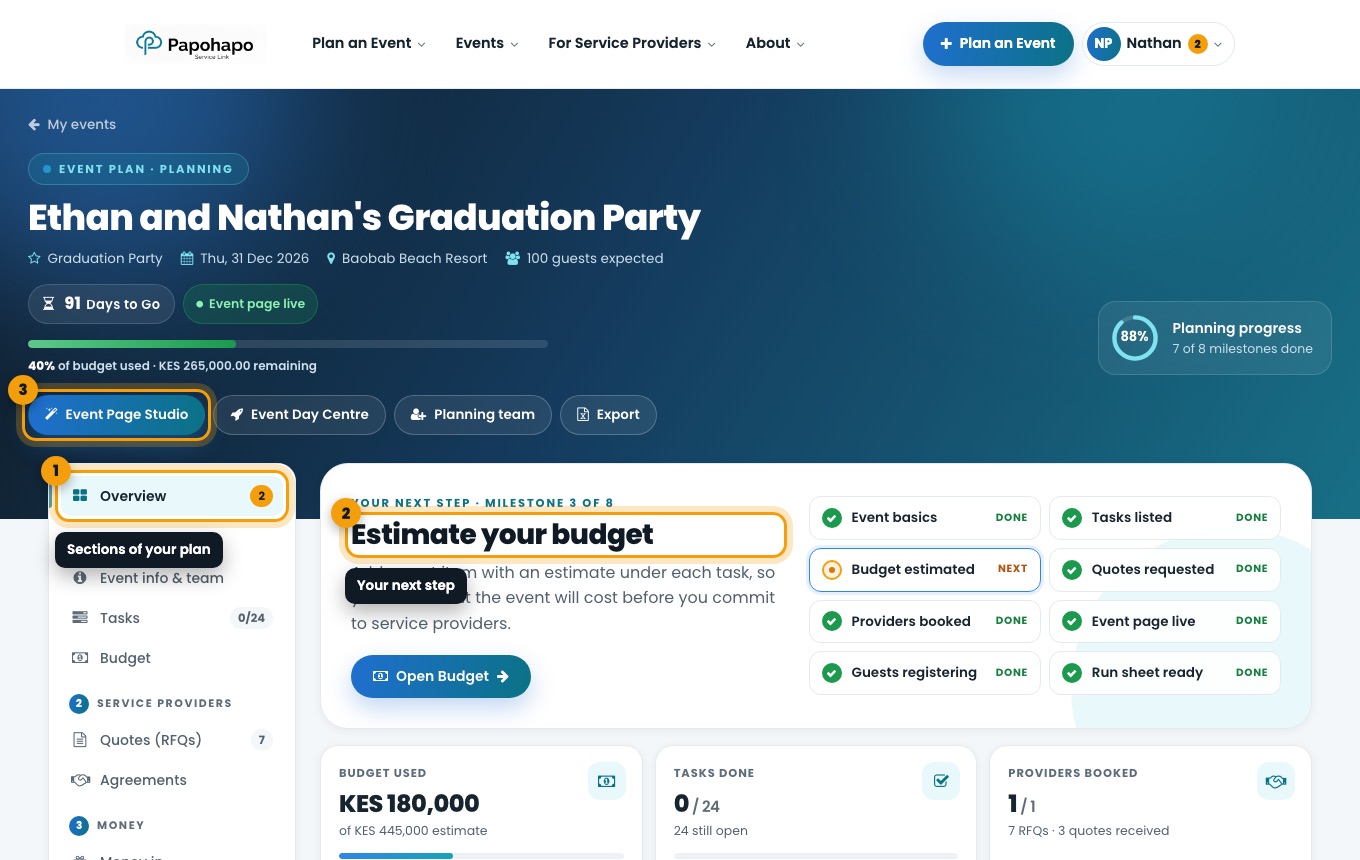
Overview shows Your next step, eight planning milestones and key numbers: budget used, tasks done, providers booked, guests registered and money received.
The Overview tab with your next step and milestones. Use the left-hand sections
Plan: Event info & team, Tasks, Budget. Service providers: Quotes (RFQs), Agreements. Money: Money in, Payments. Guests: Event page, Guests, Gift selection. Event day: Event Day Centre, Seating planner, Door check-in.
Use the header buttons
Event Page Studio designs your guest page, Event Day Centre runs the day itself, Planning team invites helpers and Export downloads your plan.
On a phone, the sections appear as a menu that stays at the top as you scroll.
What is this?
Event info & team holds the basic facts everything else depends on.
Why it matters
Service providers quote against these details, so keep them accurate. Changing the quote deadline updates every quote request for the event.
How to do it
Open Event info & team
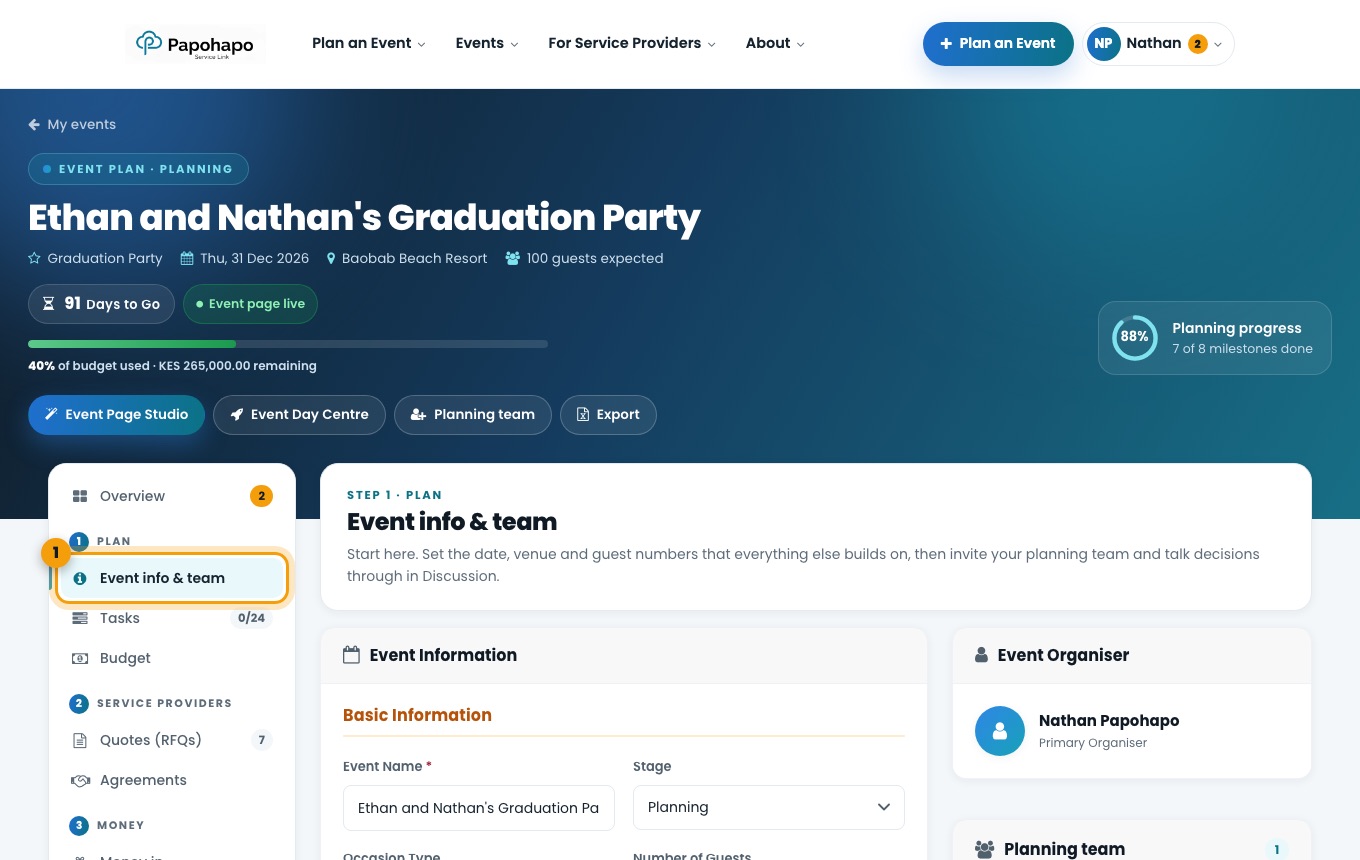
In your event plan, choose Event info & team under Plan.
Event info & team. Edit and save
Change the name, stage, occasion, dates, guests, quote deadline or location, then save.
If your event has moved, update the dates here first. Quotes cannot be requested after the cut-off.
What’s next?
What is this?
Your planning team are the people who help you plan. Each person has a role, such as planner, treasurer or committee member.
Why it matters
Everyone sees the same plan and budget. Committee members can view and comment without changing anything.
How to do it
Open the Planning team card
Go to Event info & team, or choose Planning team at the top of your plan.
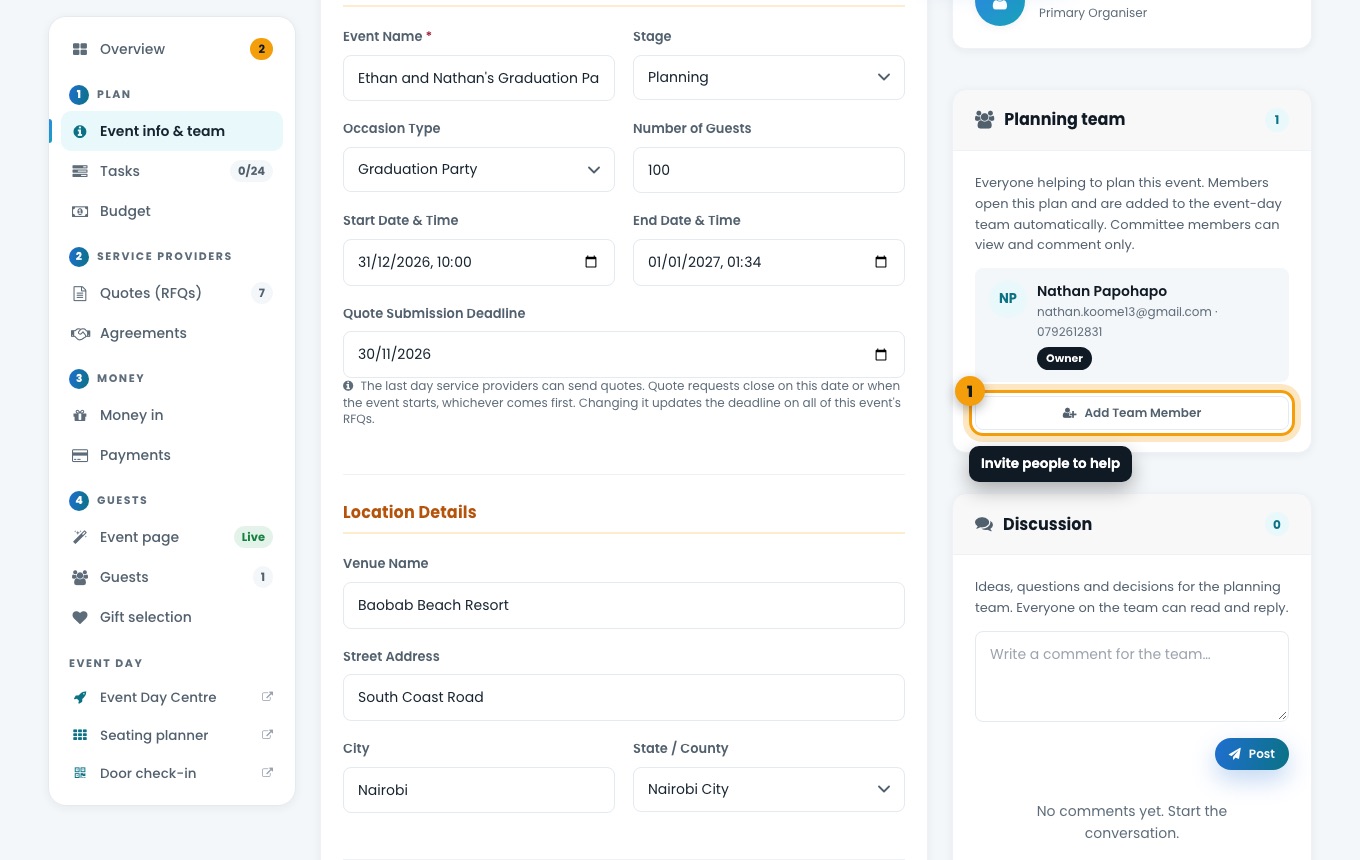
The Planning team and Discussion cards. Add a team member
Choose Add Team Member, enter their email address and choose a role. If they do not have an account yet, they are invited to join.
Talk it through in Discussion
Use Discussion for questions and decisions. Everyone on the team can read and reply.
What’s next?
What is this?
Tasks are the services and jobs your event needs, such as catering, décor or the venue.
Why it matters
Each task can hold cost items, and each cost item is what you request quotes for. Ticking tasks off moves your plan forward.
How to do it
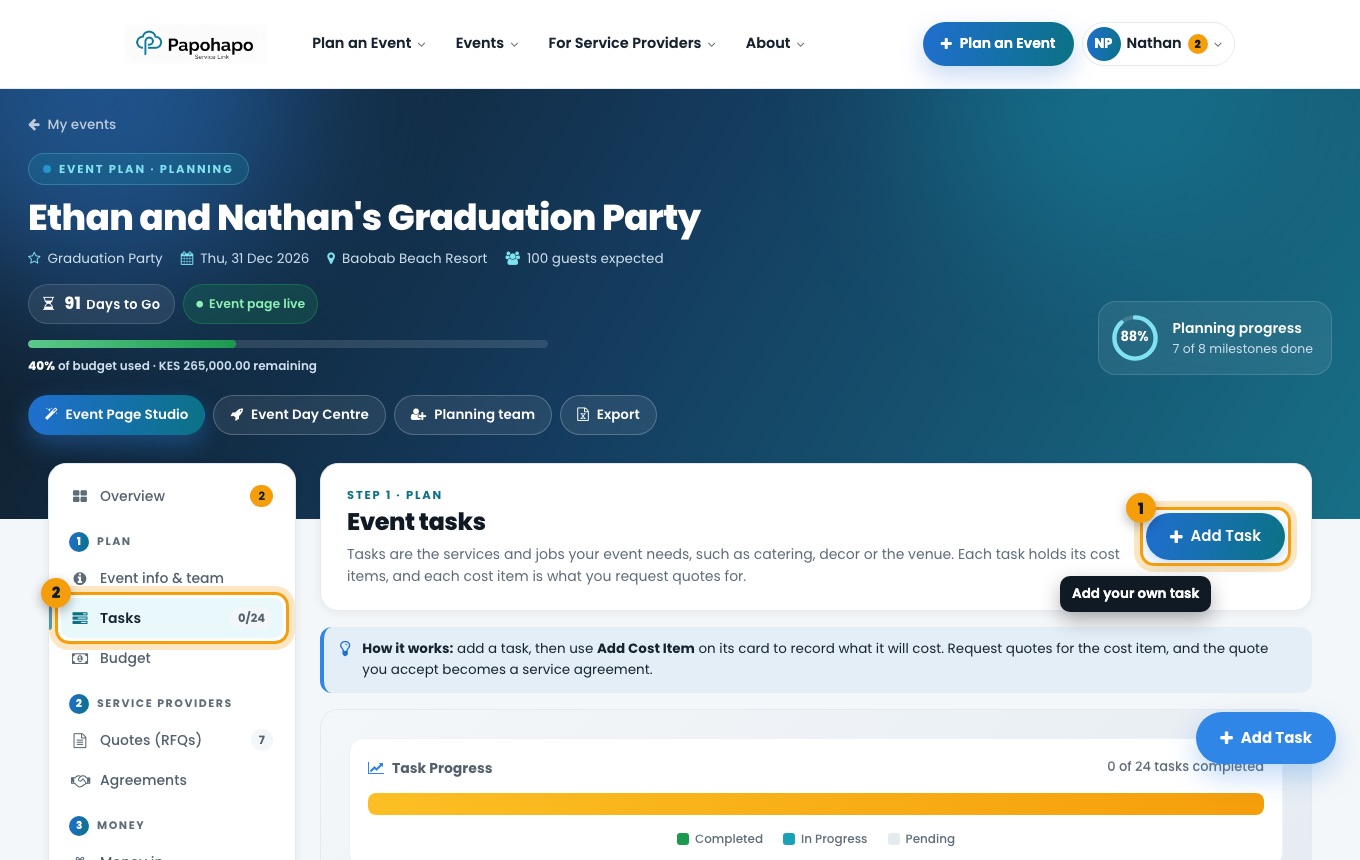
Open Tasks
Choose Tasks under Plan. Filter by status to see what is open.
Your event tasks. Add your own task
Choose Add Task, give it a name and, if it is an event service, a service category.
Add a cost item
Use Add Cost Item on a task card to record what it will cost.
What’s next?
What is this?
Your budget is made of cost items. Each cost item belongs to a task and holds your estimate.
Why it matters
Estimating first tells you what the event will cost before you commit. When you sign an agreement, the confirmed amount and payments are tracked against the cost item.
How to do it
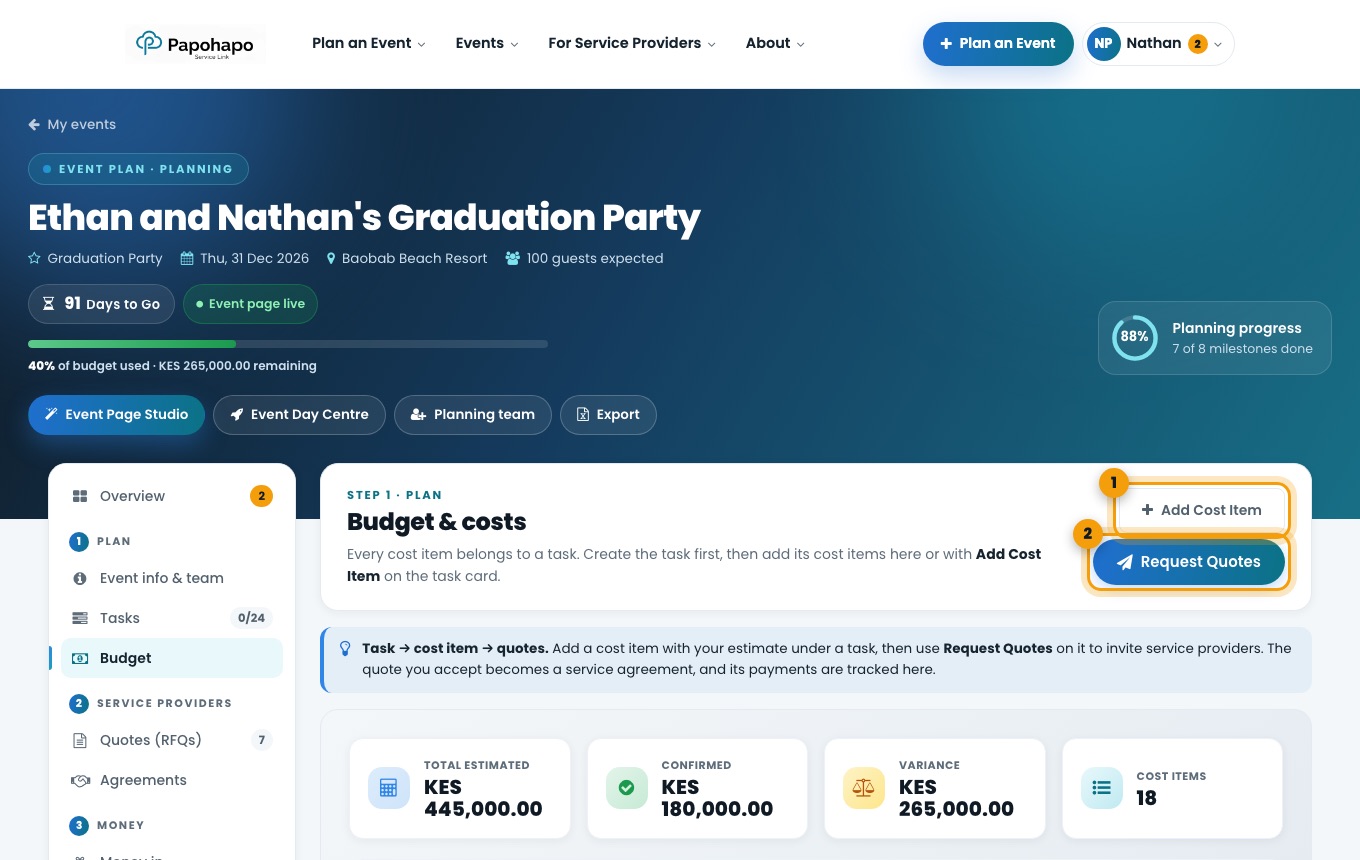
Open Budget
Choose Budget under Plan. The cards show your total estimate, confirmed amount, variance and number of cost items.
Budget & costs. Add a cost item
Choose Add Cost Item, pick the task it belongs to and enter your estimate.
Request quotes from a cost item
Choose Request Quotes to invite service providers to quote for that cost item.
Keep 10 to 15 percent of your budget unallocated for surprises.
What’s next?
What is this?
There are two ways to find service providers: browse packages with clear inclusions and starting prices, or request quotes and let providers come to you.
Why it matters
Packages are quickest when you know what you want. Quote requests are best for anything tailored to your event.
How to do it
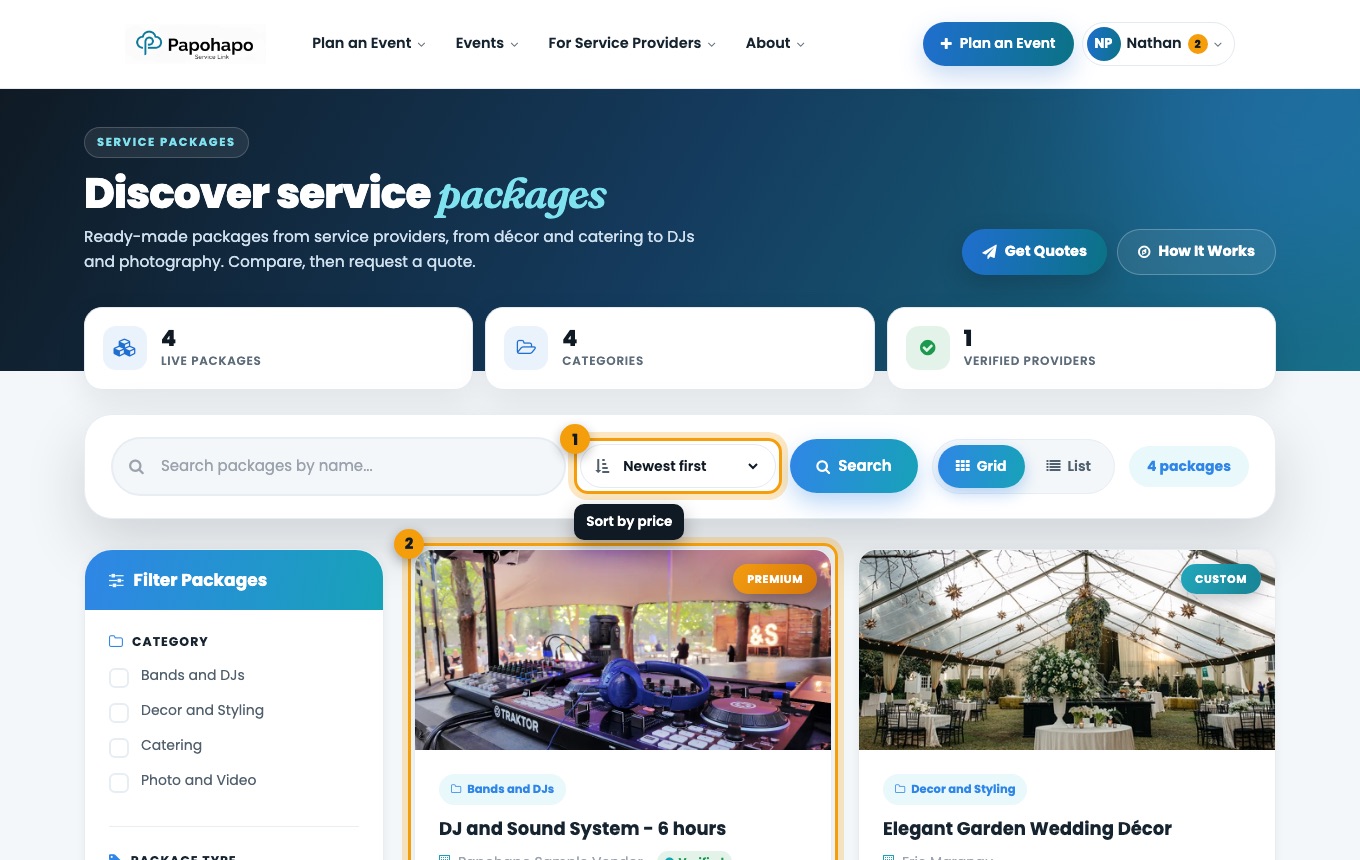
Browse packages
Go to Packages. Filter by category or package type, and sort by price.
The Packages page. Open a package
See what is included, optional add-ons, capacity, coverage and payment terms, then choose Request a Quote.
Look for Verified
The green Verified badge means Papohapo has reviewed the provider’s identity and business documents.
What is this?
A Papohapo Verified provider has submitted their identity and business details, and Papohapo has reviewed and approved them.
Why it matters
It confirms you are dealing with a genuine, identifiable business before you pay a deposit.
How to do it
Look for the badge
You will see Verified on packages, quotes and agreements.
Still compare quality
Verification confirms identity, not style or quality. Check the package details, photos, reviews and the provider’s answers to your request.
What’s next?
What is this?
A Request for Quotation (RFQ) invites service providers to quote for one of your cost items.
Why it matters
One request reaches every matching provider, and their quotes come back to you side by side.
How to do it
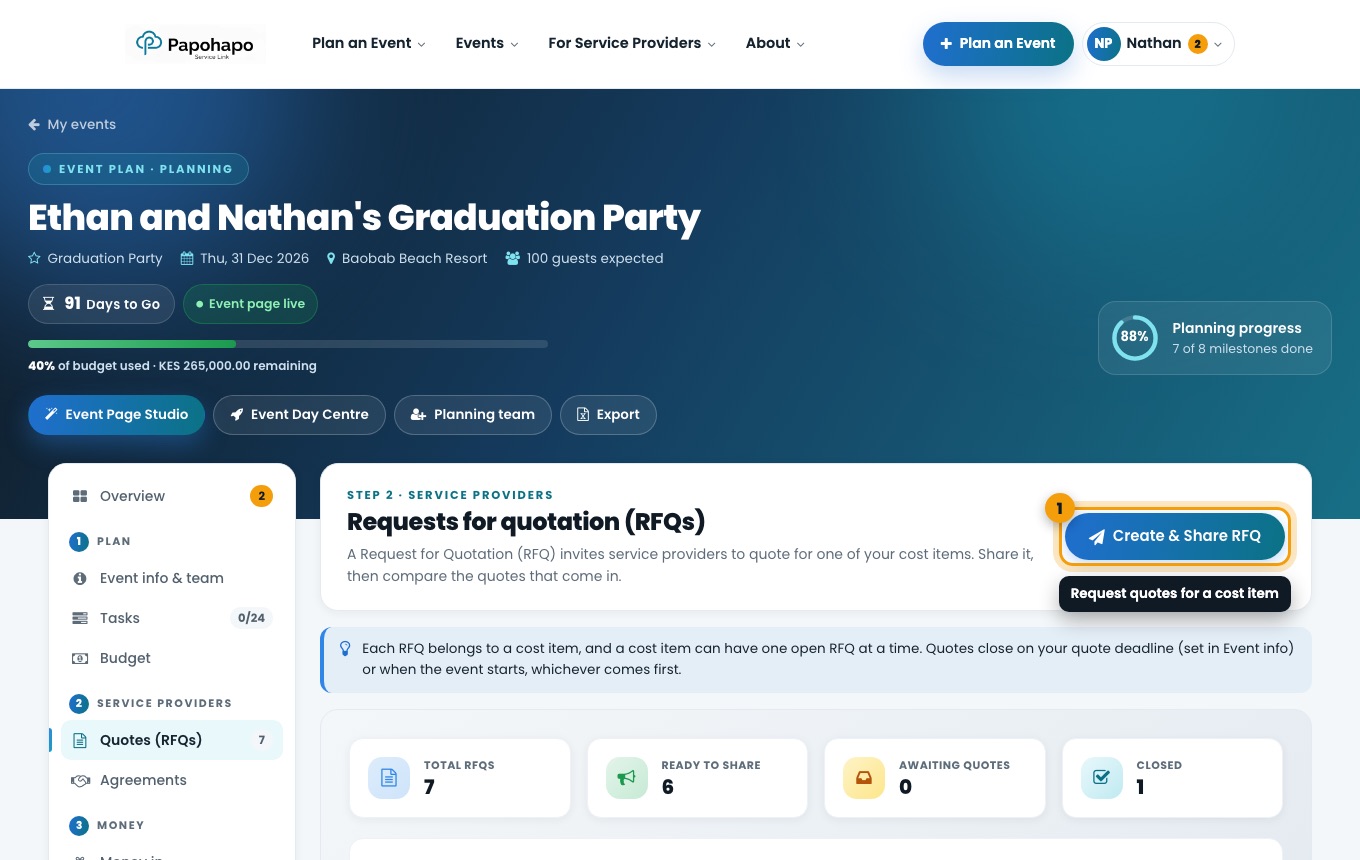
Start a request
Use Get Quotes, Request Quotes on a cost item in Budget, or Create & Share RFQ in Quotes (RFQs).
Quotes (RFQs) in your event plan. Choose the service
Choose One Category for a single service, or Multiple Categories when you want one provider to deliver several services together.
Step 1 of Get Quotes. Choose your event
Pick the event the request is for, or create a new event.
Answer the questions
Tell providers what you need. The more detail you give, the more accurate the quotes.
Wait for it to open
Papohapo prepares your request and publishes it. Its status moves to Open for Quotes, and matching providers can quote.
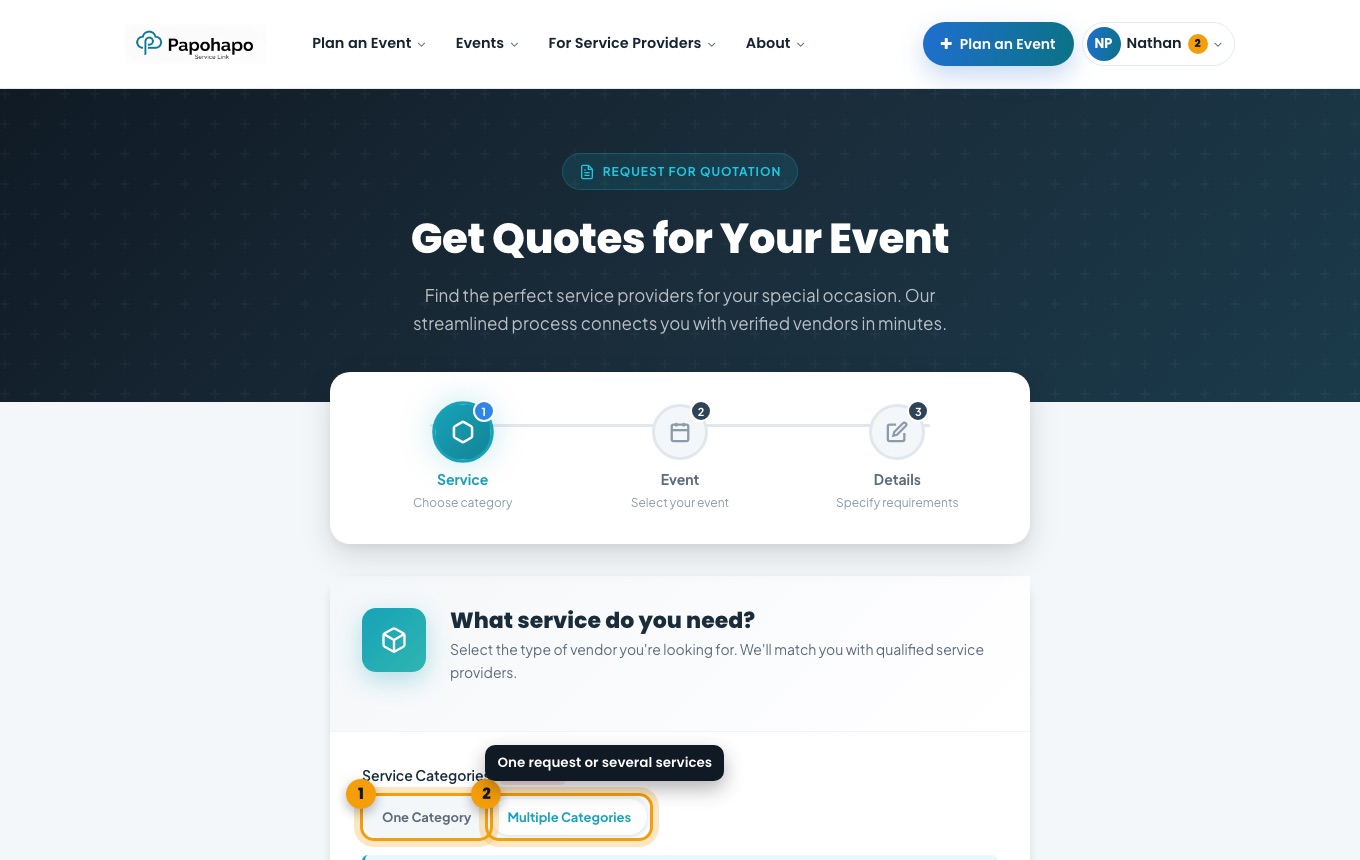
Each cost item can have one open request at a time. Requests close on your quote deadline or when the event starts, whichever comes first.
What is this?
A package request asks the package’s provider for a quote, based on your event and the add-ons you choose.
Why it matters
It is the fastest route when you have found a package you like. You can still compare it with other providers.
How to do it
Open the package and choose Request a Quote
The request opens with the package, starting price and provider at the top.
Request a quote for a package. Choose your event
Select the event plan, or create a new event. Events past their quote cut-off cannot be chosen.
Check availability and add-ons
See whether the provider is available on your date, then choose any optional add-ons.
Decide who should quote
Your request always goes to the package’s provider. Leave Also get quotes from other service providers switched on to receive comparable quotes as well.
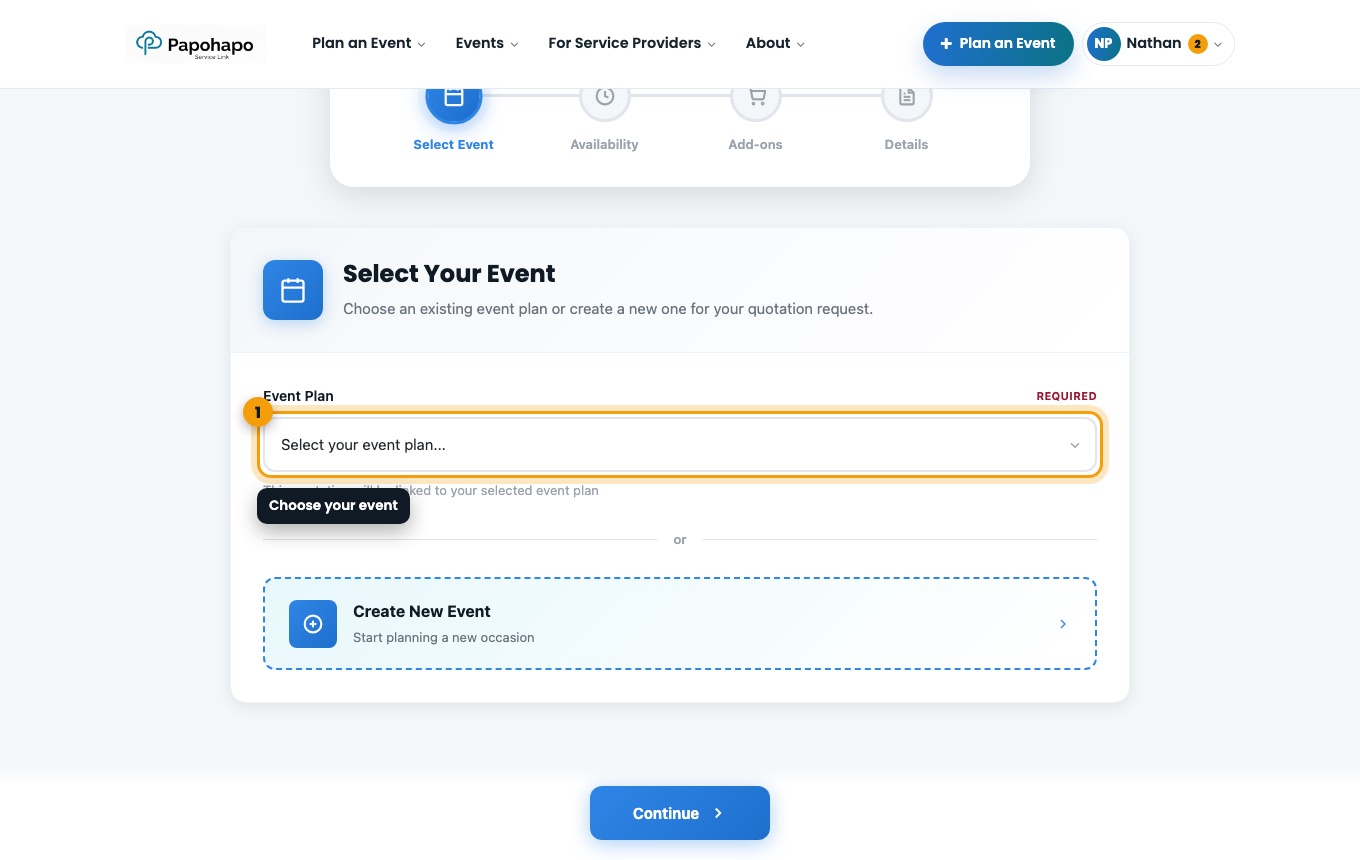
Kept it private? You can open it to other providers later with Open to All Providers on the request page.
What’s next?
What is this?
Once a request is open for quotes, you can share it with providers you know.
Why it matters
It is useful when you already have a trusted caterer or photographer and want them to quote through Papohapo.
How to do it
Open the request
Go to My RFQs and open the request.
Your quote requests. Choose Invite Providers
Copy the link, or share it by email or WhatsApp. Providers need an account to quote.
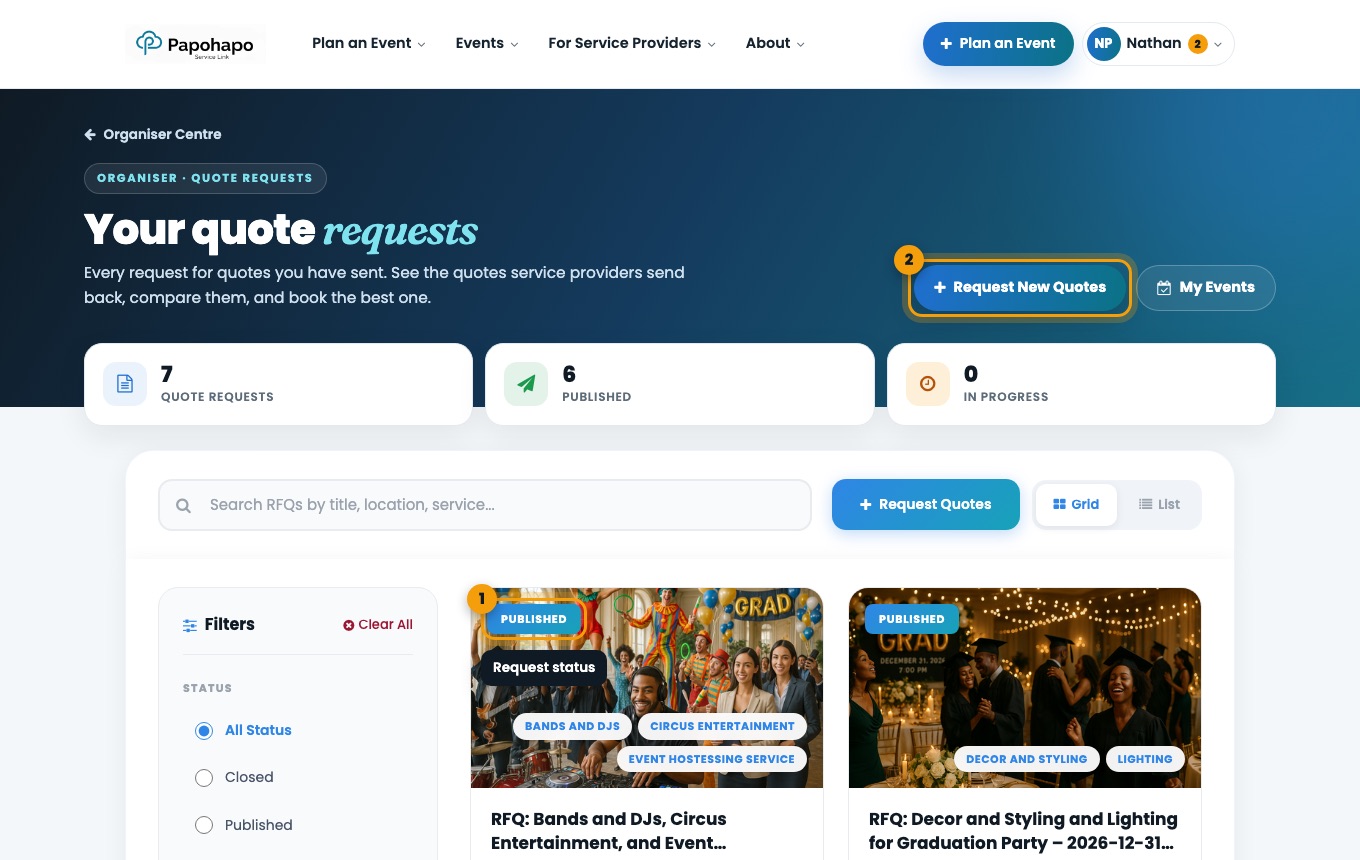
Invite Providers only appears once the request is Open for Quotes.
What’s next?
What is this?
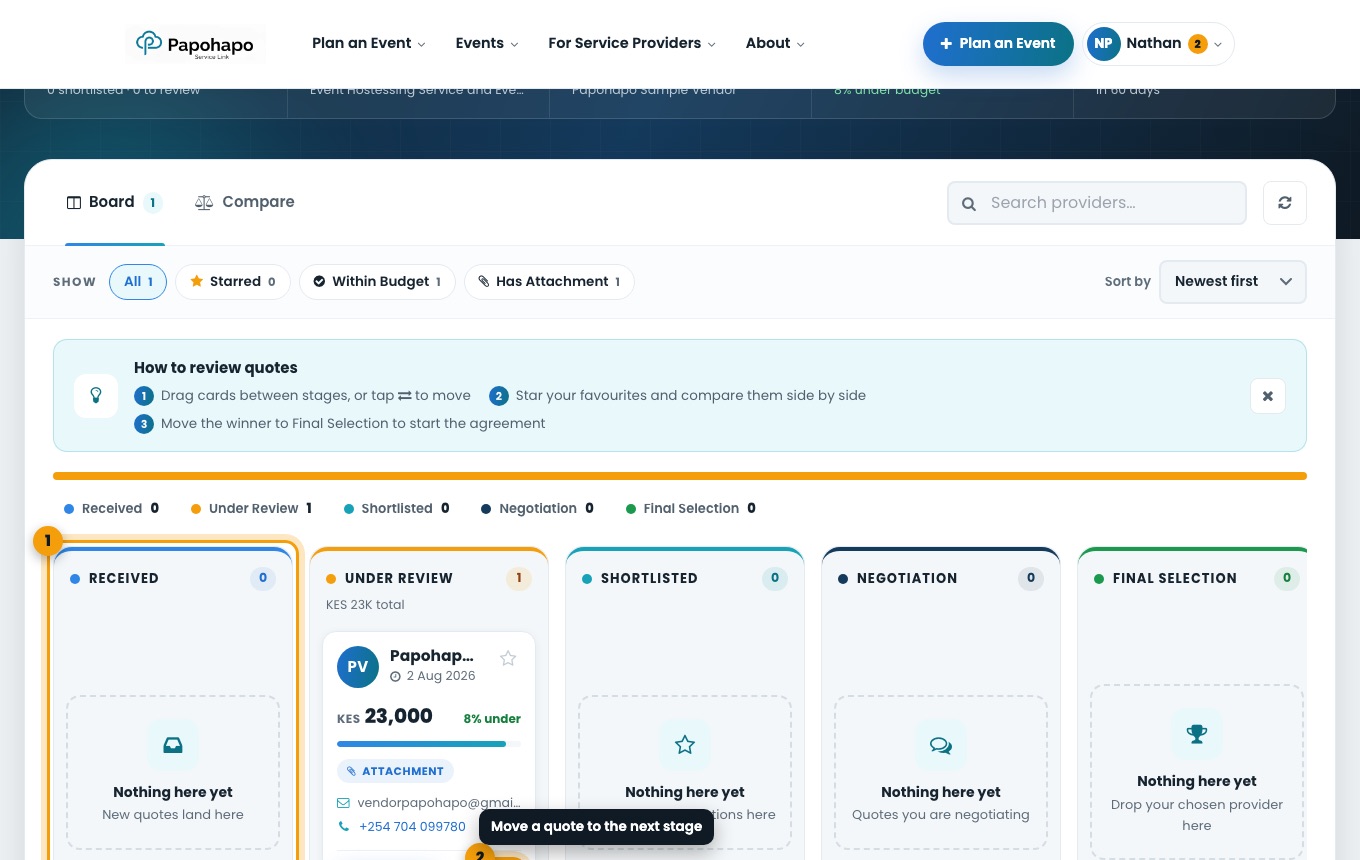
Every quote for a request lands on its review board, in stages from Received to Final Selection.
Why it matters
Moving quotes through the stages keeps track of your decisions, and the finalist becomes your service agreement.
How to do it
Open the request
From your Organiser Centre choose Compare, or open the request in My RFQs.
Review on the board
Drag a quote between stages, or use the move control on its card: Received, Under Review, Shortlisted, Negotiation, Final Selection.
The quote review board. Compare side by side
Choose Compare to see prices and details together. Star your favourites, or filter by Within Budget.
Message a provider
Ask for a call, a revised quote, a cost breakdown or confirmation of availability.
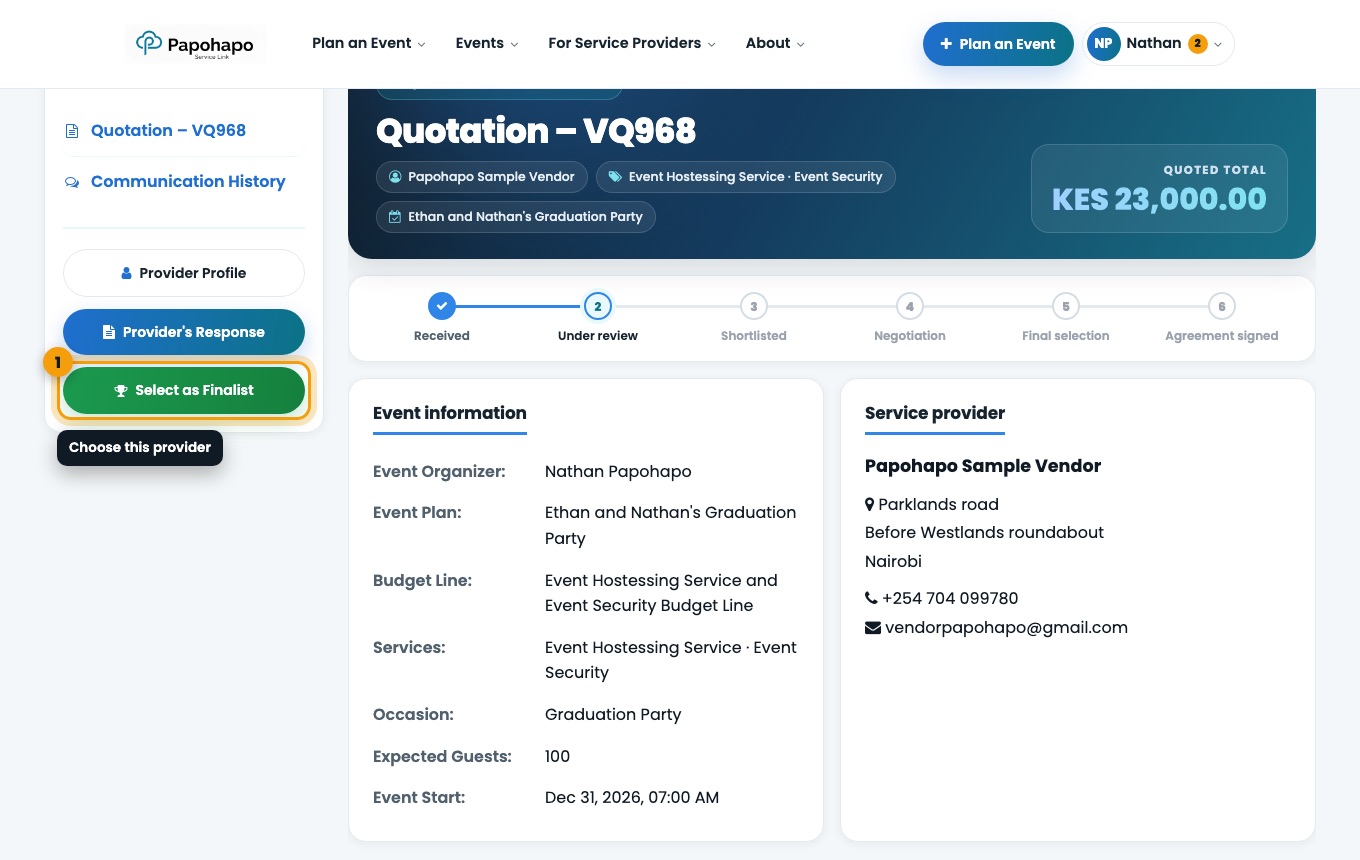
Select your finalist
Move the winning quote to Final Selection, open it and choose Select as Finalist.
Select as Finalist on the quotation page.
What’s next?
What is this?
A service agreement is the written contract between you and your service provider. It is created from the quote you select.
Why it matters
It records exactly what will be delivered, the price and the payment schedule, and both of you sign it on Papohapo.
How to do it
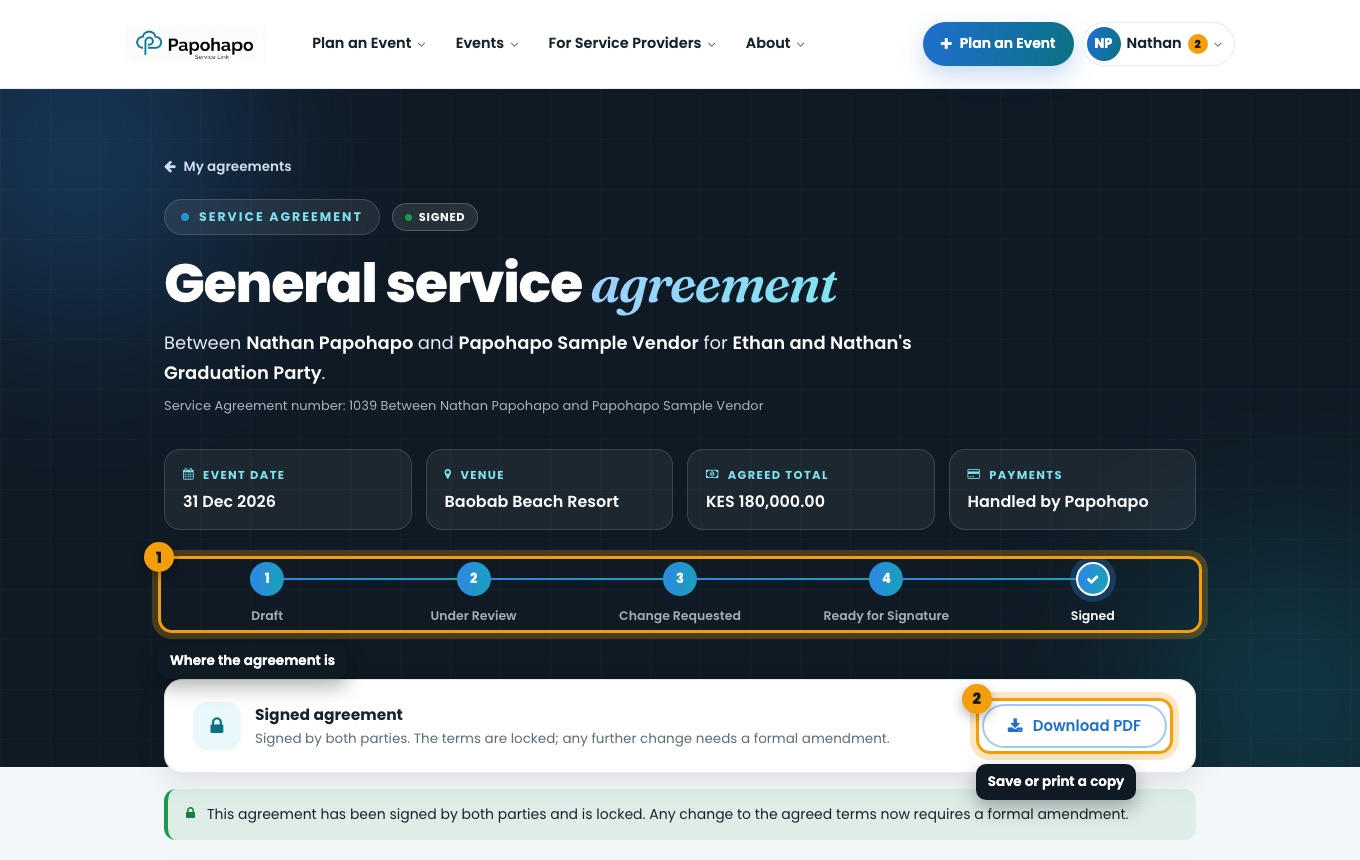
Draft
You prepare the terms. Only you can see it.
The stage tracker at the top of every agreement. Under Review
You share it with the provider. They check the terms and can suggest changes.
Change Requested
The provider has suggested changes. You accept or decline each one.
Ready for Signature
You confirm the final terms. Both of you sign.
Signed
Both have signed. The terms are locked, and the payment schedule starts.
After signing, any change needs a formal amendment.
What’s next?
What is this?
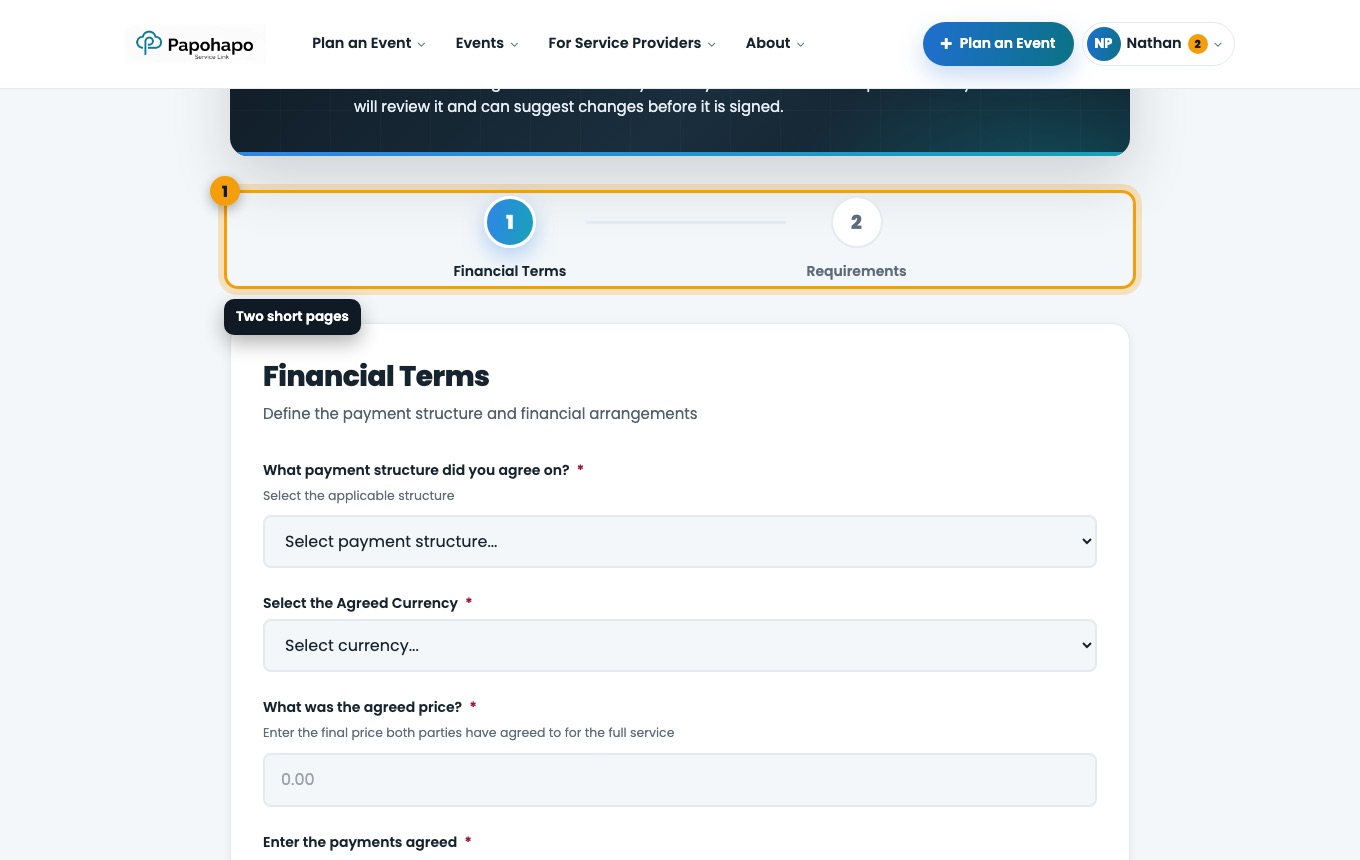
When you select a finalist, the Create Service Agreement page opens in two parts: Financial Terms and Requirements.
Why it matters
These terms become the agreement your provider reviews, so set them to match what you discussed.
How to do it
Financial terms
Choose the payment structure (Full payment upfront, Deposit + balance or Custom arrangement), the currency and the agreed price.
Financial Terms. Add the payments
Use Add Payment for each deposit, instalment and balance, with its amount and due date. The payments must add up to the agreed price.
Choose who handles payments
Papohapo will handle payments: Papohapo pays the provider from your Event Wallet after you approve each payment. I will handle payments myself: you pay the provider directly.
Requirements
Confirm the requirements and specifications, tick the confirmation and save. Your draft agreement opens.
What’s next?
What is this?
While the agreement is a draft, you can edit every section: event details, services, pricing, payment arrangement, schedule, deliverables, responsibilities and terms.
Why it matters
Getting the terms right before you share saves a round of changes.
How to do it
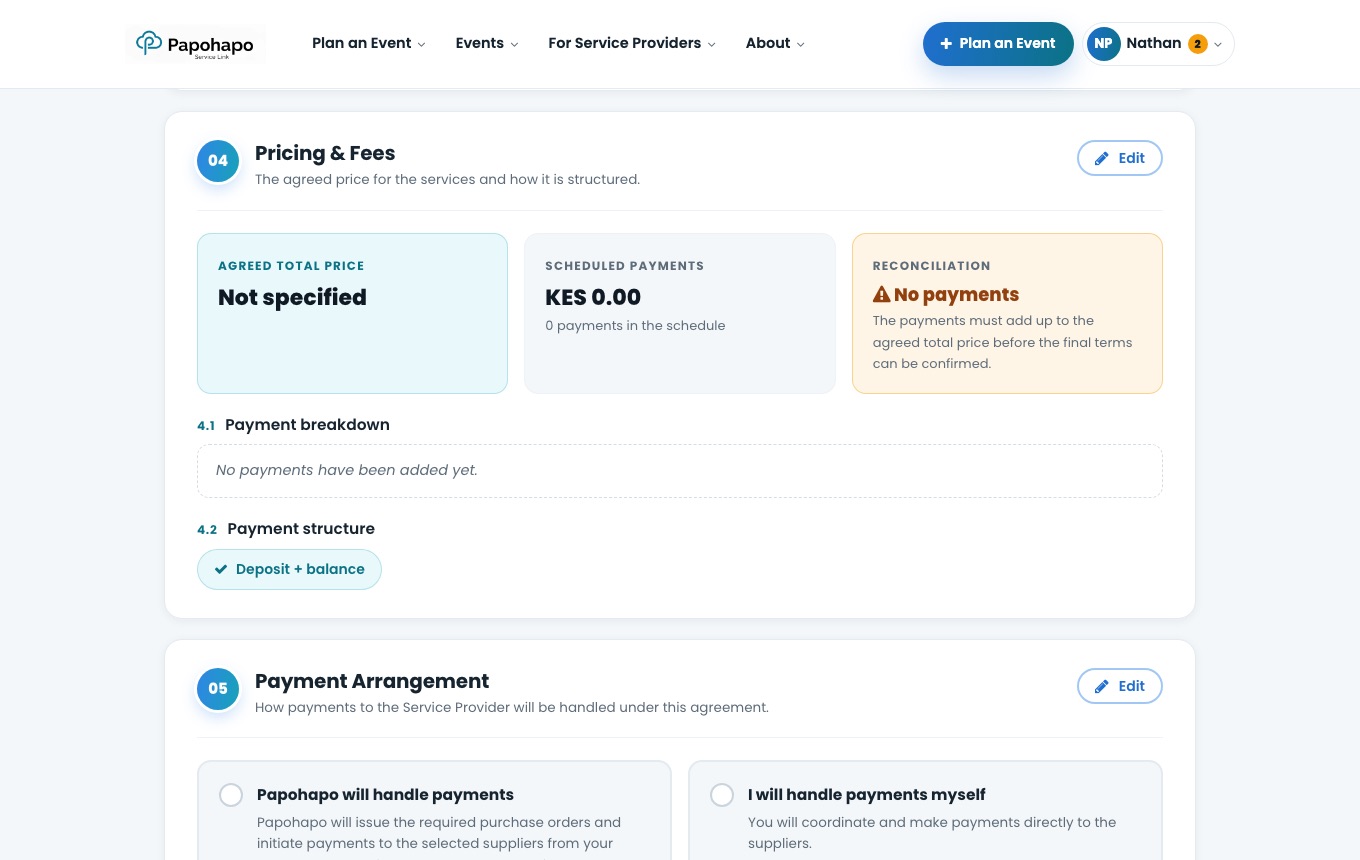
Edit a section
Choose Edit on any section, make your changes and save.
Each section has its own Edit button. Share for review
Choose Share for Review. The provider is emailed and can review the terms.
Share for Review or Delete Draft.
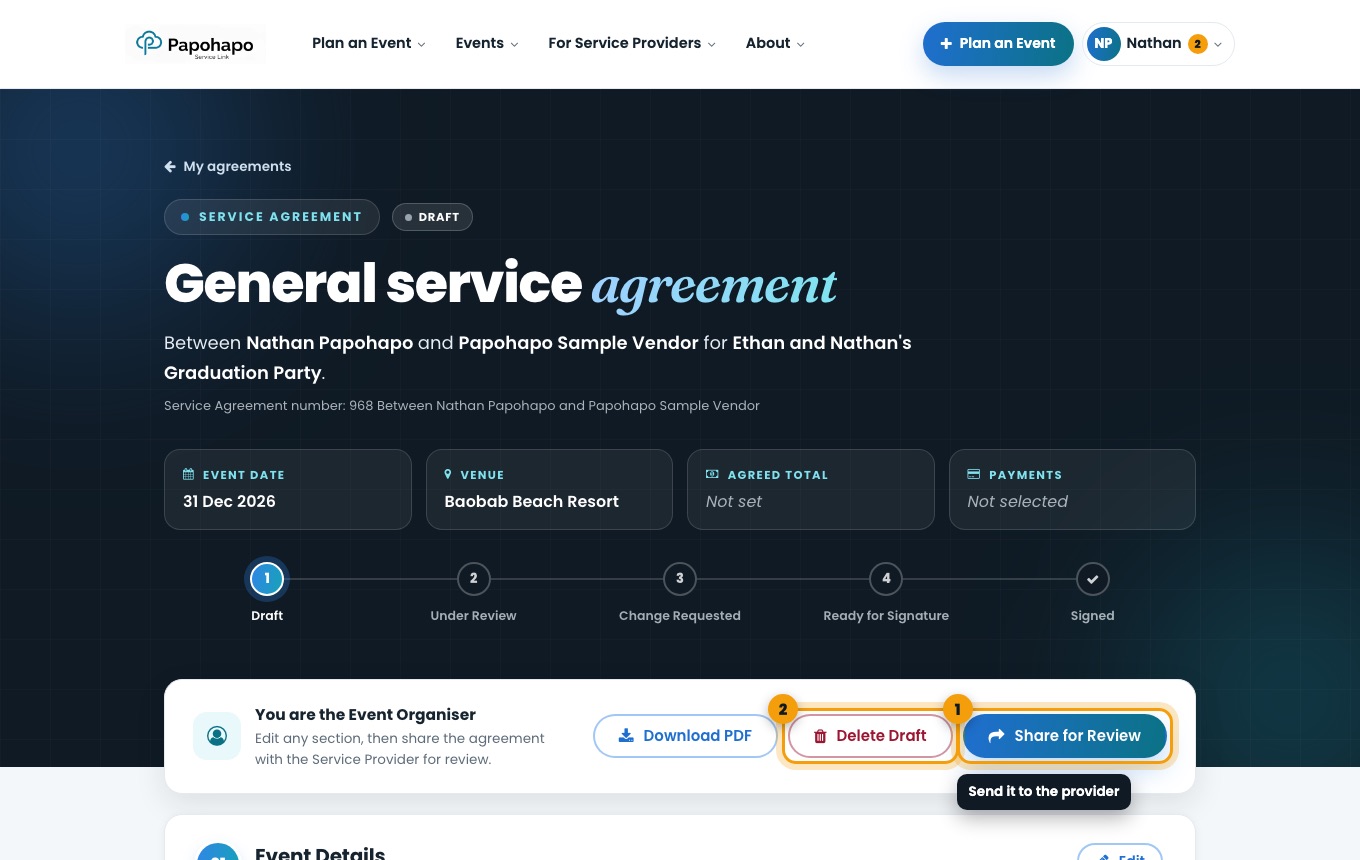
Changed your mind before sharing? Delete Draft removes the draft and frees the quote.
What’s next?
What is this?
During review, your provider can suggest changes to individual sections. Each suggestion appears under Suggested changes.
Why it matters
You stay in control: nothing changes unless you accept it, and every decision is kept in the agreement history.
How to do it
Open the agreement
You receive an email when changes are suggested. Open the agreement from the email, the Agreements section or your Organiser Centre.
Accept or decline each change
Read each suggestion and choose to accept or decline it.
Confirm final terms
When you are happy, choose Confirm Final Terms. The agreement becomes Ready for Signature.
Need another round? Reopen for Review sends it back to the provider.
What’s next?
What is this?
Signing happens in the Final Confirmation & Signatures section of the agreement.
Why it matters
The agreement only takes effect when both you and the provider have signed.
How to do it
Open the signature section
Open the agreement and scroll to Final Confirmation & Signatures.
Both parties sign here. Sign
Sign in the box and confirm. If the provider has not signed yet, we remind them by email.
Keep a copy
Choose Download PDF to save or print the signed agreement.
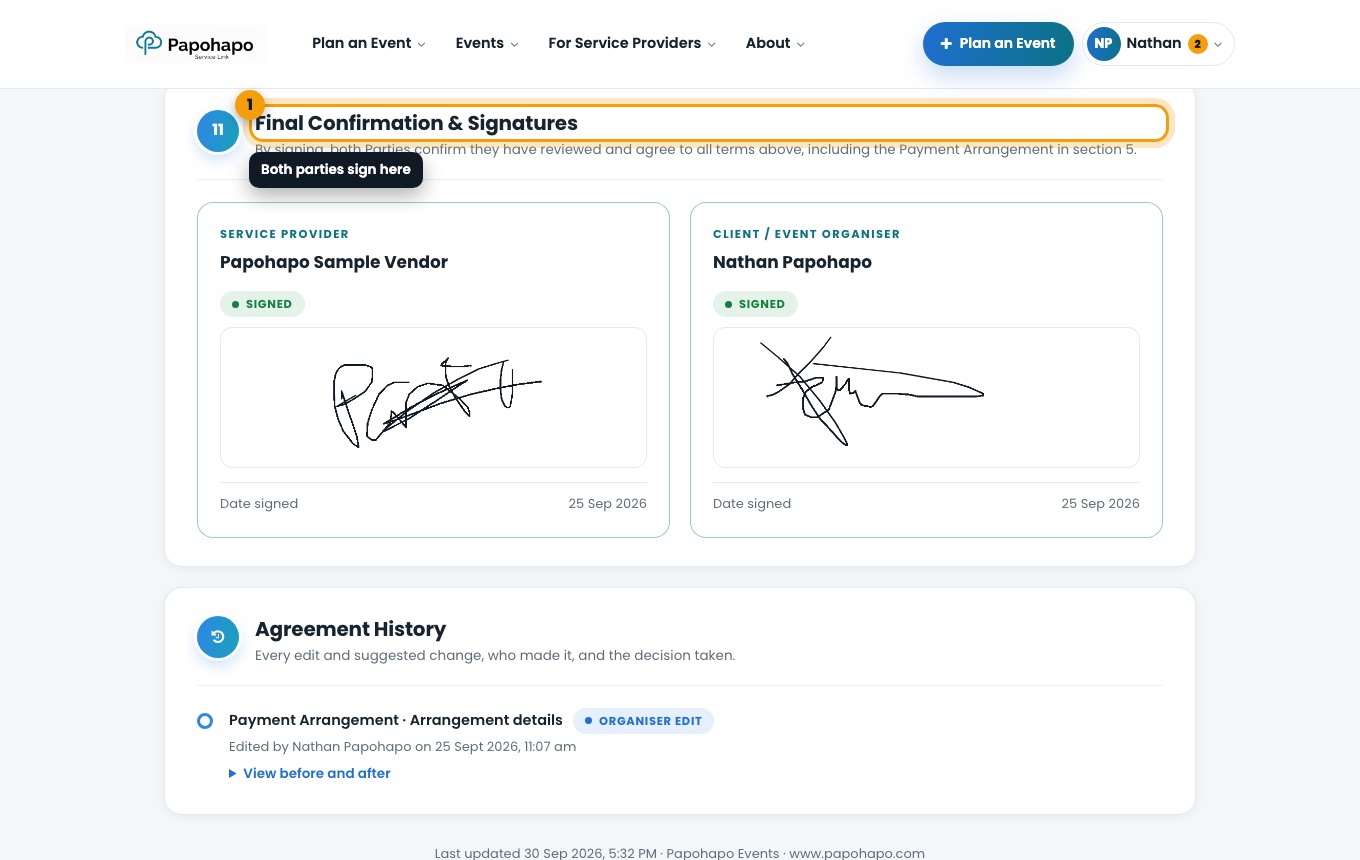
After signing, the selected quote becomes a sales order and the request closes to other quotes.
What’s next?
What is this?
You can delete a draft agreement, or cancel an agreement at any stage until both parties have signed.
Why it matters
If plans change before the contract is final, you can step back cleanly and choose another provider.
How to do it
Delete a draft
Open the draft and choose Delete Draft.
Cancel an agreement
Choose Cancel Agreement and give a reason. The provider is notified.
Once both parties have signed, the agreement cannot be cancelled on Papohapo. Contact Papohapo for help.
What’s next?
What is this?
Every signed agreement has a payment schedule: a deposit, any instalments and a balance, each with a due date.
Why it matters
You always know what is due, what needs your decision and what has been paid, for every provider.
How to do it
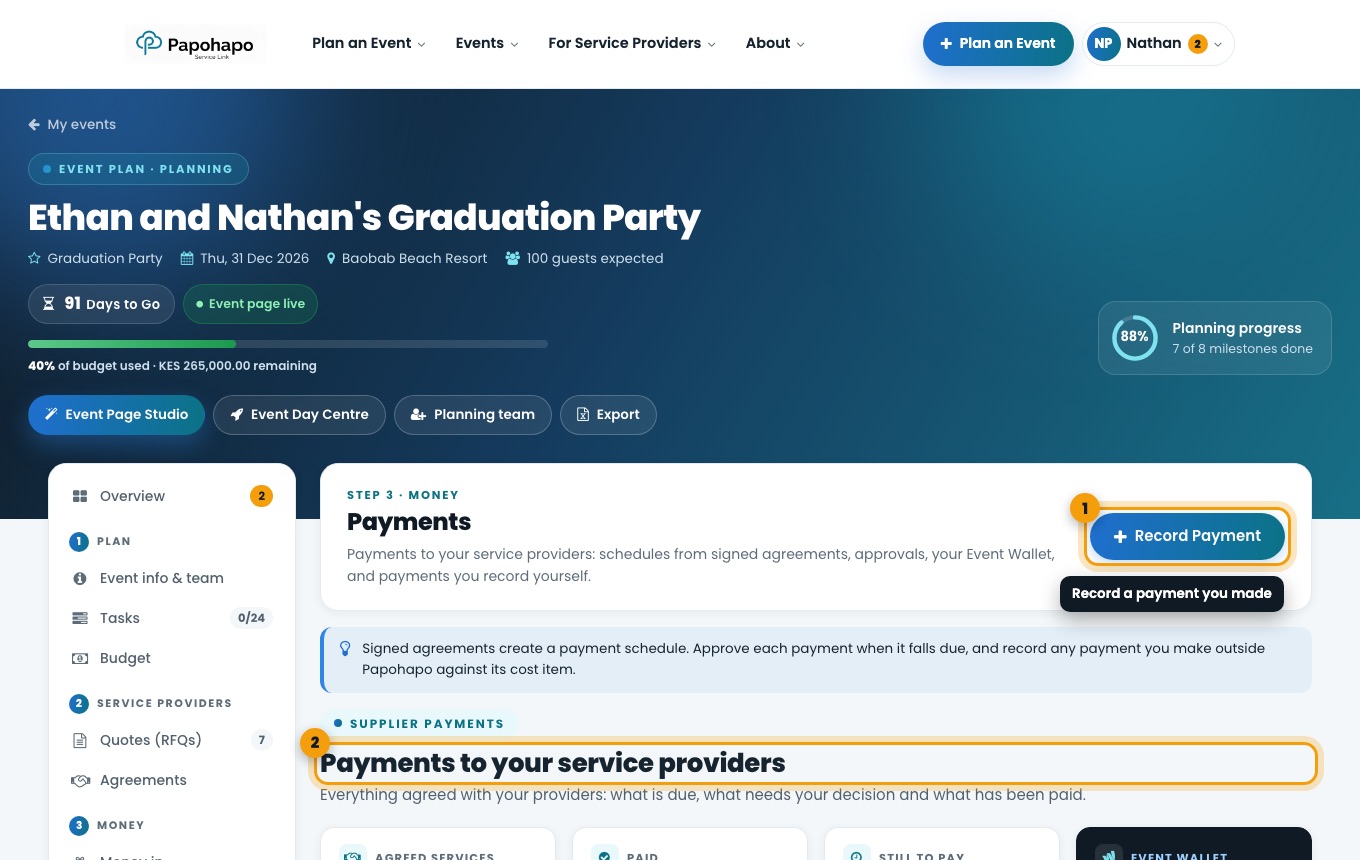
Open Payments
In your event plan, choose Payments under Money.
Payments in your event plan. Read the summary
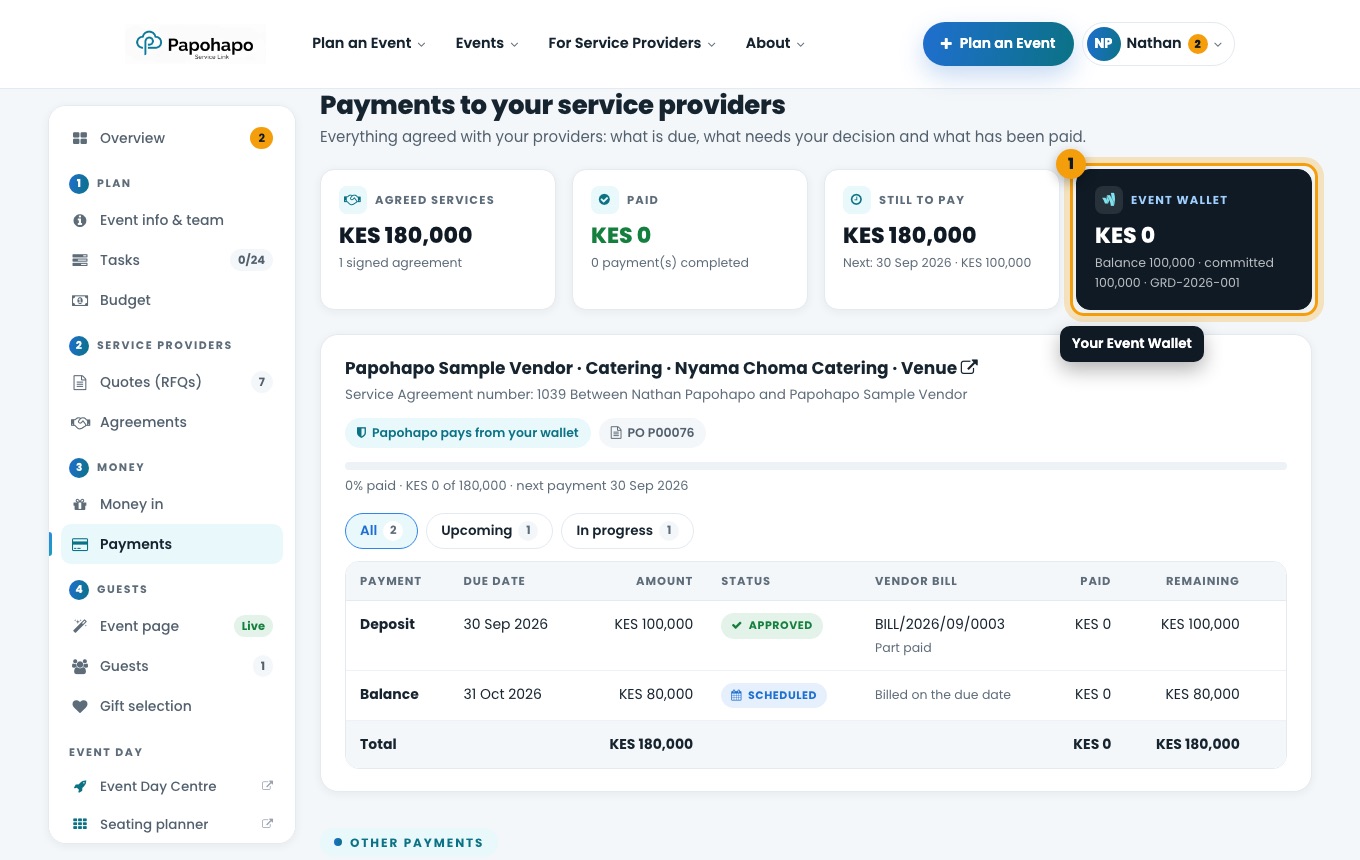
See agreed services, paid, still to pay and your Event Wallet.
Each agreement lists its payments, status and amounts. Check each agreement
Each payment shows its due date, amount and status, for example Scheduled, Approved or Paid.
What is this?
If your agreement says Papohapo will handle payments, Papohapo pays your provider from your Event Wallet.
Why it matters
Your provider is paid on time and every payment is recorded against the agreement.
How to do it
Keep your Event Wallet funded
Payments come from your Event Wallet. To add funds to your wallet, contact Papohapo. We email you if a payment is due soon and the wallet does not hold enough.
Approve each payment
When a payment falls due, it waits for your approval. Choose Approve Payment in Payments or on the agreement. It also shows as “To approve” in your Organiser Centre.
Papohapo pays the provider
After approval, Papohapo releases the payment to the provider. The status moves to Paid.
You pay the agreed amount in the agreement, and nothing extra.
What’s next?
What is this?
If you chose I will handle payments myself, you pay the provider directly, for example by M-Pesa or bank transfer.
Why it matters
Recording each payment keeps your budget and the provider’s schedule in step.
How to do it
Pay as scheduled
Pay each amount by its due date, as set out in the agreement.
Mark it as paid
In Payments, mark the scheduled payment as paid once you have paid it.
Record other payments
Use Record Payment for payments outside an agreement, against the right cost item.
Keep the M-Pesa or bank confirmation for every payment.
What’s next?
What is this?
Money in tracks money pledged or received for your event.
Why it matters
You see how much of your budget is covered and the gap still to raise.
How to do it
Open Money in
Choose Money in under Money.
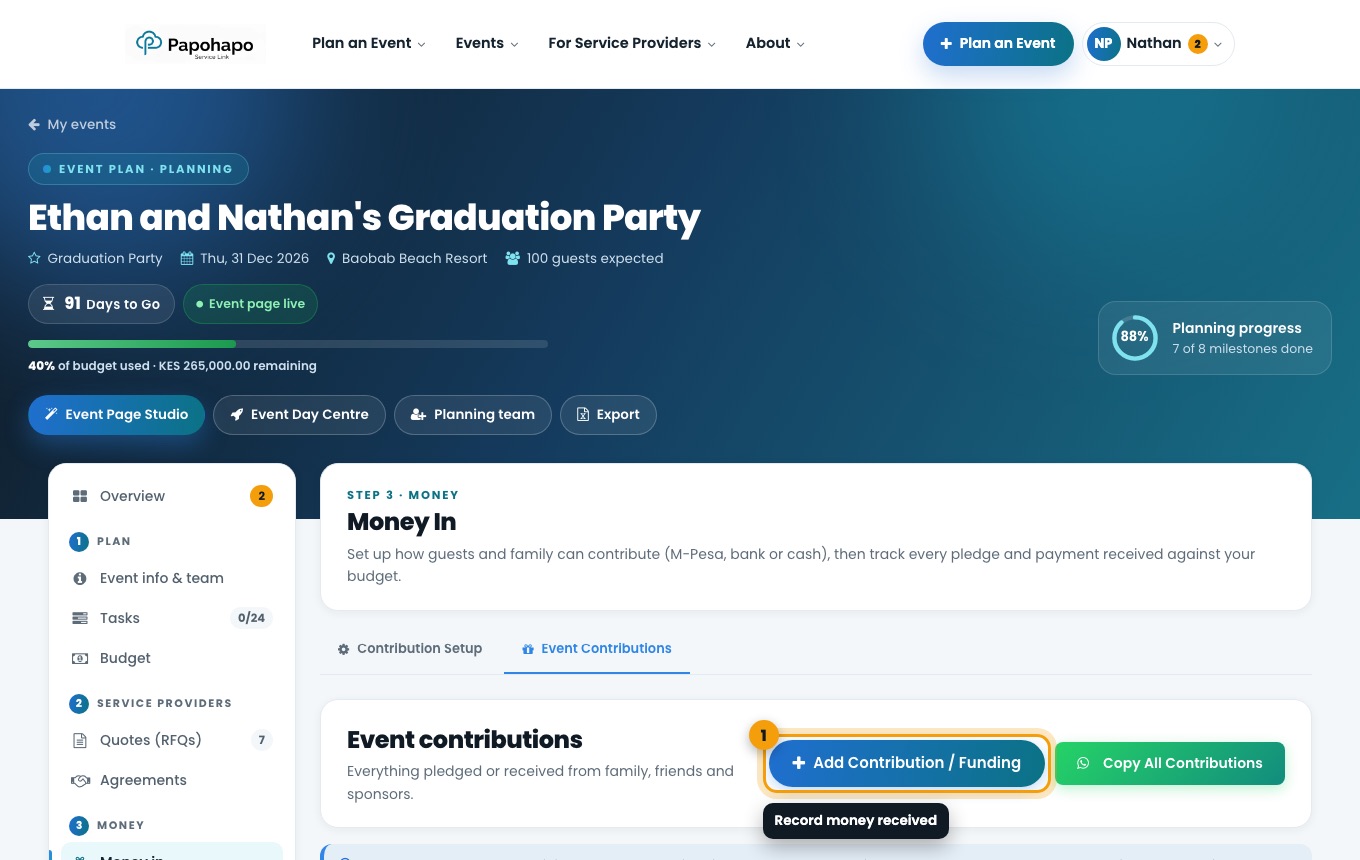
Money in. Set up collection
Under Contribution Setup, choose how people can contribute: M-Pesa, bank or cash.
Record each contribution
Choose Add Contribution / Funding. Record pledges when they are made and mark them paid when the money arrives.
What’s next?
What is this?
Your event page is the page your guests see: the story, programme, venue, RSVP and gift registry.
Why it matters
One link gives every guest the details, and RSVPs go straight into your guest list.
How to do it
Open the Studio
Choose Event Page Studio at the top of your plan, or Open Event Page Studio under Event page.
The Event page section of your plan. Design
Pick a style and colours, add a cover photo and choose which page sections to show.
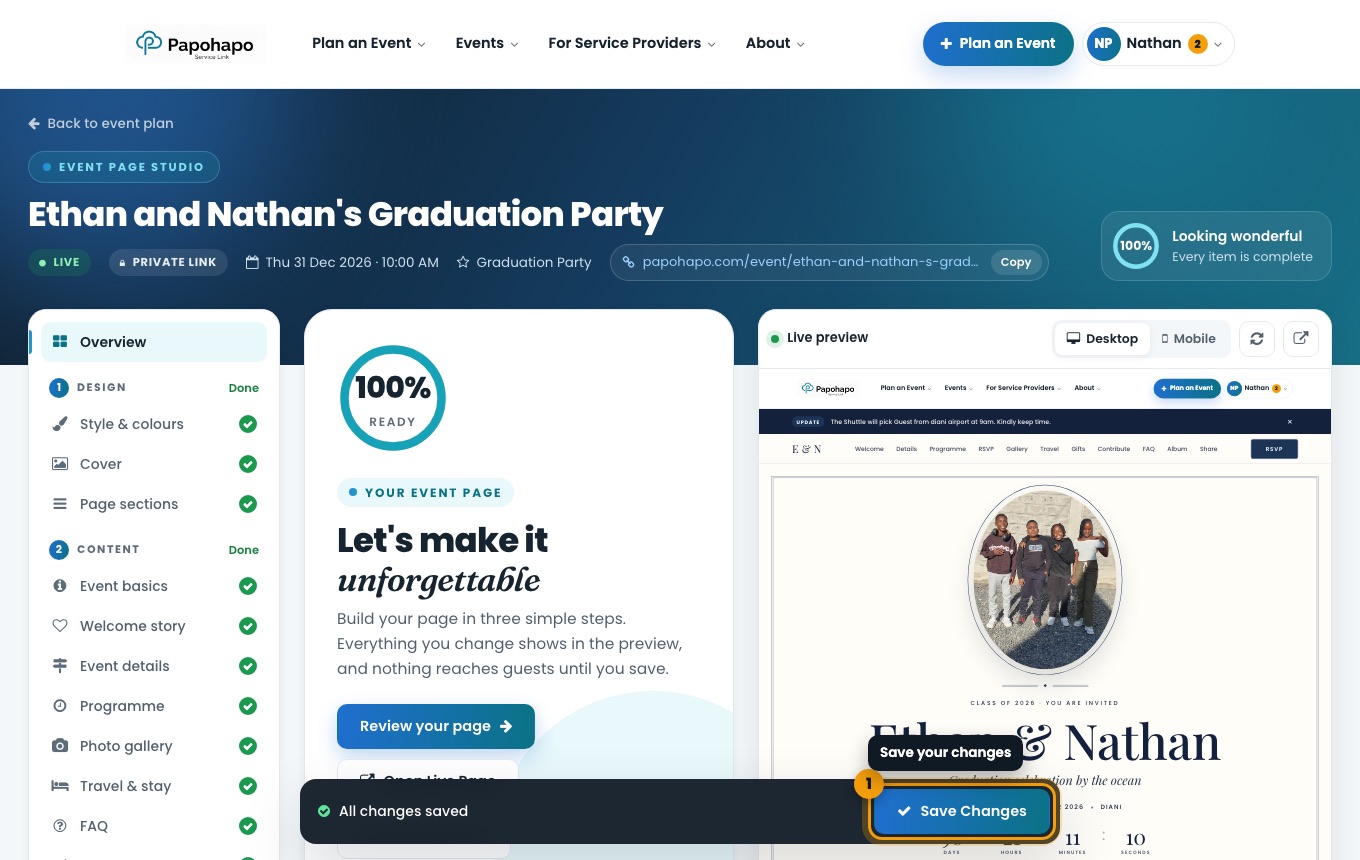
The Event Page Studio with live preview. Add your content
Fill in Event basics, Welcome story, Event details, Programme, Photo gallery, Travel & stay and FAQ.
Set up guests
Use RSVP & tickets, Gift registry, Contributions and Sharing & social.
Save and share
Choose Save Changes. Copy the link or share it from the Event page section.
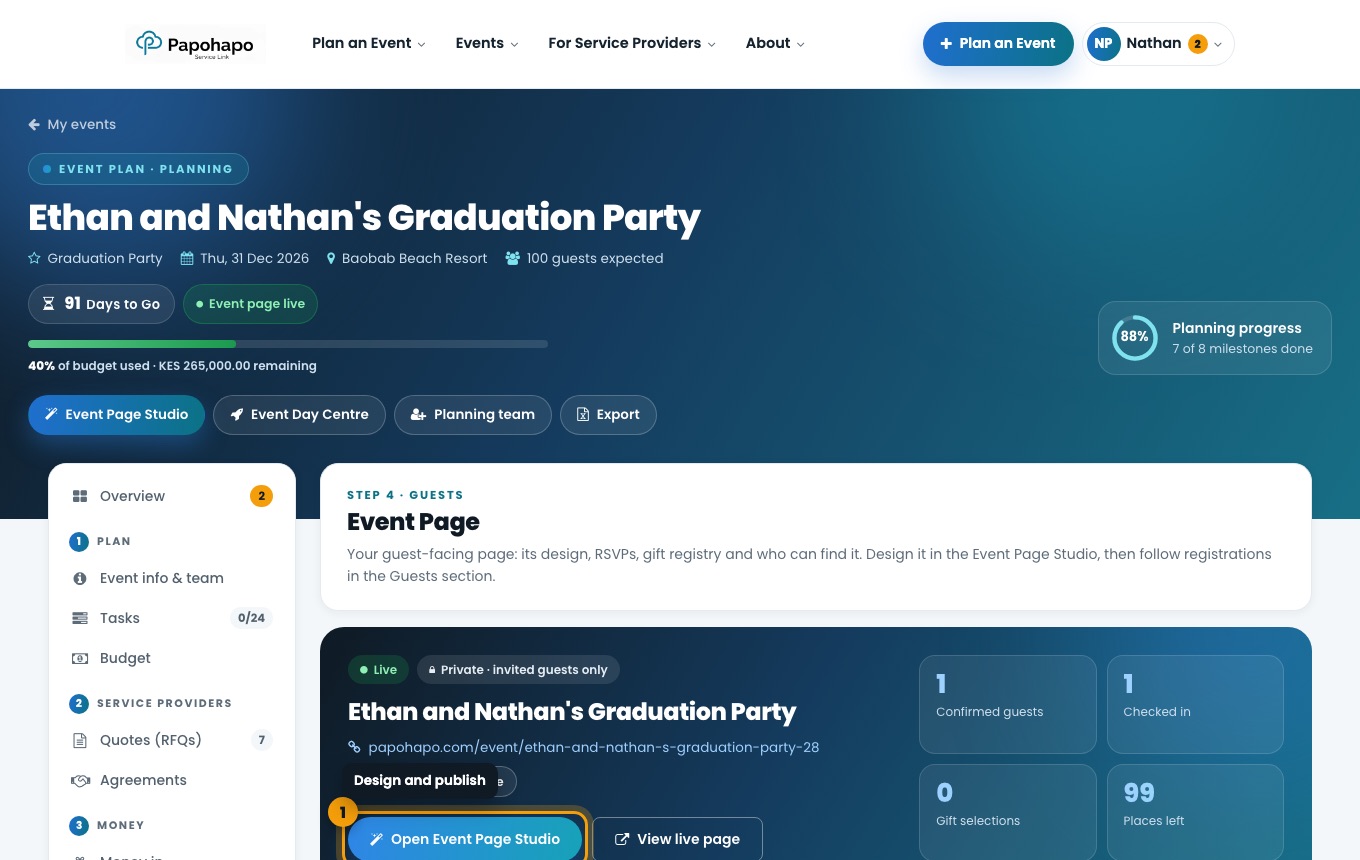
Under Who can find it, keep the page as a private link or list it publicly on Papohapo Events.
What is this?
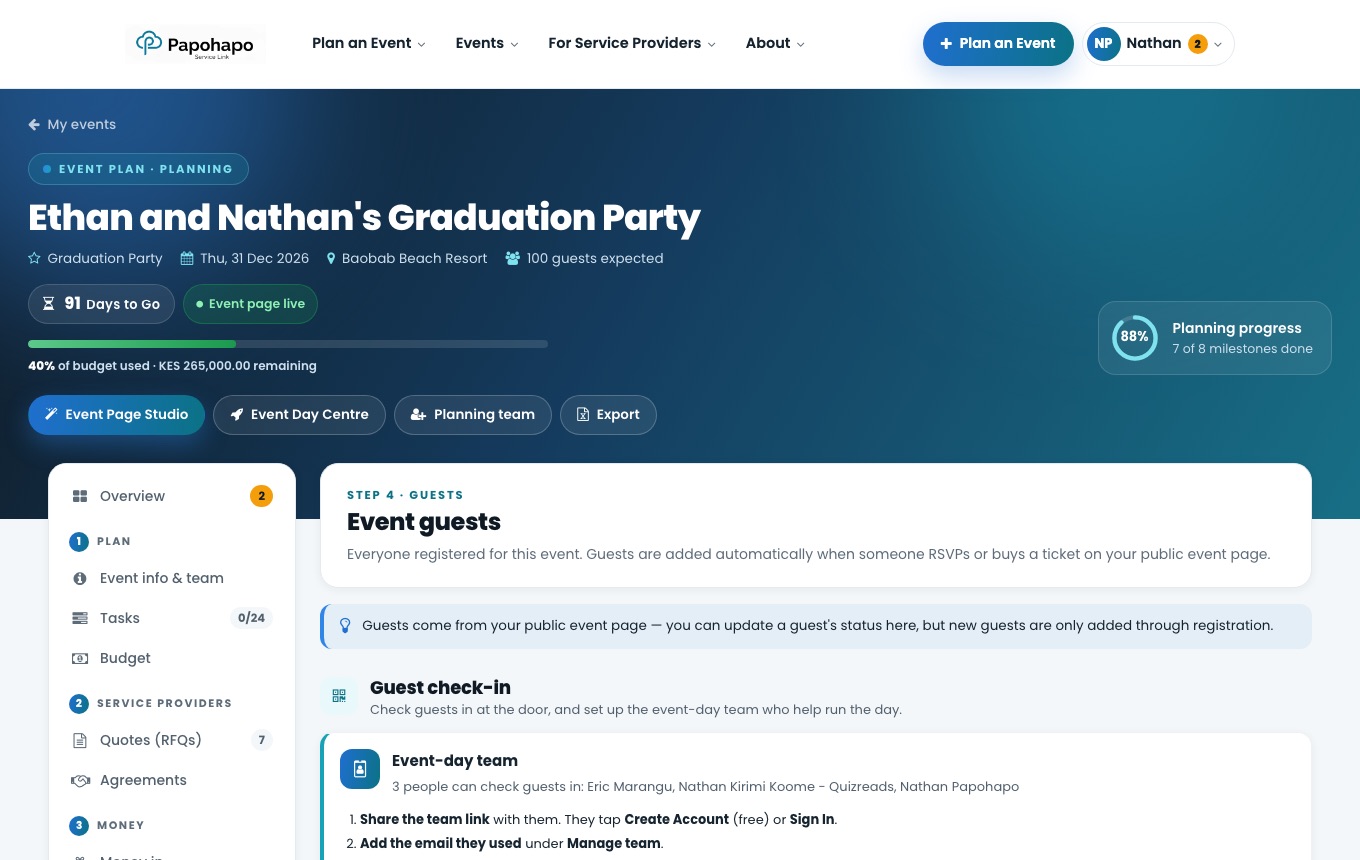
Guests are added automatically when someone RSVPs or gets a ticket on your event page.
Why it matters
You always have an up-to-date list, and can plan seating and check-in from it.
How to do it
Open Guests
Choose Guests under Guests.
Guests with check-in and seating. Filter and export
Filter by status or RSVP answer, then Export CSV or Print list.
Seat your guests
Choose Open Seating Planner to set up tables and place guests. Their table shows at door check-in.
What’s next?
What is this?
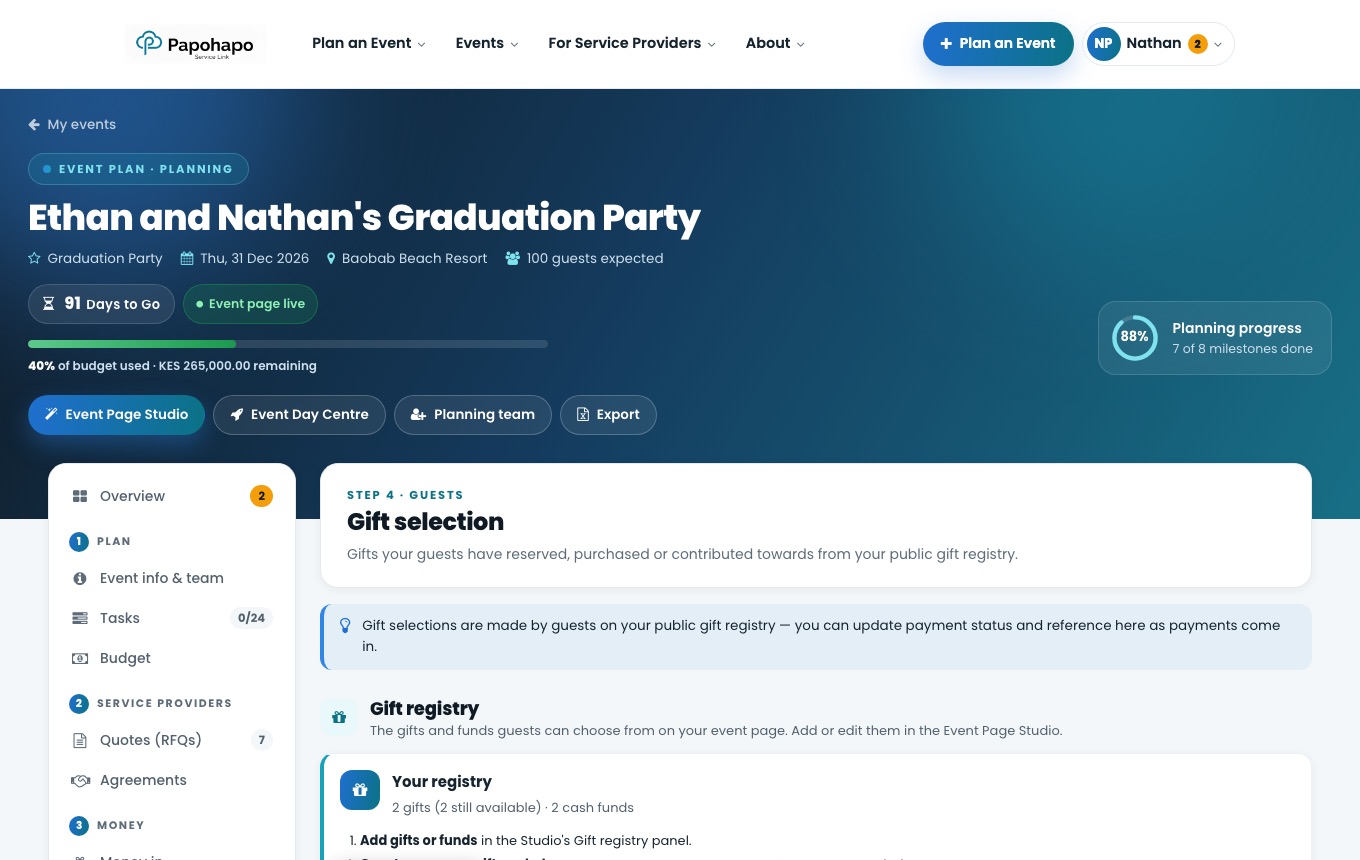
Your gift registry lets guests reserve a gift or pledge towards a fund from your event page. They do not need an account.
Why it matters
No duplicate gifts, and you can see who reserved what.
How to do it
Open Gift selection
Choose Gift selection under Guests.
Gift selection. Add gifts and funds
Choose Manage gift registry to add them in the Studio’s Gift registry panel.
Track selections
See every reservation and pledge, filter by payment status, and export the list.
What’s next?
What is this?
The Event Day Centre is your command post on the day. Door check-in scans guest passes at the entrance.
Why it matters
Your event-day team sees the same run sheet, provider arrivals and announcements on their phones.
How to do it
Open the Event Day Centre
Choose Event Day Centre at the top of your plan.
Add your event-day team
In the Guests section, choose Manage team and add the email they use for Papohapo. Share the team link with them.
Check guests in
Open Door check-in and scan each guest’s pass, or search by name.
What’s next?
What is this?
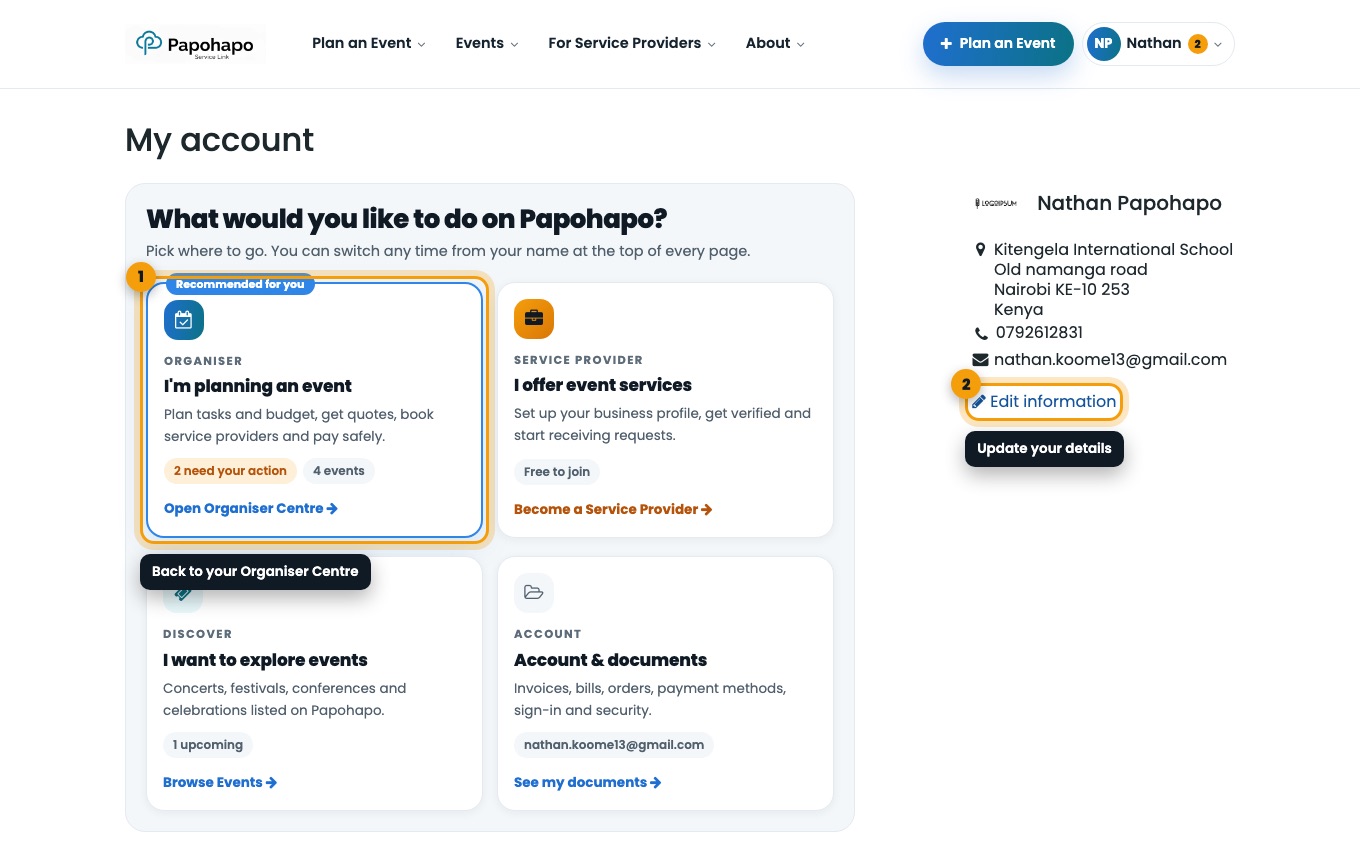
My account holds your personal details and any documents Papohapo shares with you.
Why it matters
Keep your name, phone and email current so providers and Papohapo can reach you.
How to do it
Open My account
Choose your name at the top right, then Account details or Payments & documents.
My account. Edit your details
Choose Edit information to update your name, phone and address.
Go back to planning
Choose I’m planning an event to return to your Organiser Centre.
Payments to service providers are tracked in your event plan, not in /my.
What’s next?
What is this?
Papohapo emails you when something needs you: new quotes, suggested changes, agreements ready to sign, payments to approve and wallet reminders.
Why it matters
Acting on these emails keeps your providers on schedule.
How to do it
Look for info@papohapo.com
All emails come from info@papohapo.com.
Check spam
If you are expecting a message, check your spam or promotions folder and add info@papohapo.com to your contacts.
What’s next?
Yes. Planning events, requesting quotes and signing agreements are free. You pay your service providers the amounts you agree, and nothing extra.
Open your event plan and choose Payments. If Papohapo handles payments, approve each payment when it falls due and Papohapo pays the provider from your Event Wallet. If you pay directly, pay the provider and mark the payment as paid. See How payments work.
In your event plan under Payments. Your Organiser Centre also shows money paid so far and anything waiting for approval.
Before it is signed, edit the sections of a draft, or accept or decline changes your provider suggests during review. After both parties sign, changes need a formal amendment. See Respond to suggested changes.
Quotes cannot be requested after the quote cut-off, which is the quote deadline or the event start, whichever is earlier. Each cost item can also have only one open request. Update the dates in Event info & team if your event has moved.
Papohapo prepares every request before publishing it to providers. When its status is Open for Quotes, providers can quote and you can invite providers.
The provider has submitted their identity and business details, and Papohapo has reviewed and approved them. See What “Papohapo Verified” means.
Yes. Add them under Planning team with a role. Committee members can view and comment without editing. See Invite your planning team.
You can delete a draft, or cancel with a reason until both parties have signed. See Cancel or delete an agreement.
No. Guests can view your event page, RSVP and use the gift registry without an account.
Emails come from info@papohapo.com. Check your spam or promotions folder and add the address to your contacts.
Use Reset password with the email you registered with, then follow the link we send you.