💼 Service Provider Support Hub
How can we help you?
Step-by-step guides for running your event-services business on Papohapo: your profile, packages, requests, quotes, agreements and payments.
New here? Start with these
The essentials, in the order you will need them.
Browse by topic
Every guide, grouped by what you are trying to do.
Getting Started
Join Papohapo and find your way around.
Business Profile & Verification
Stand out and earn the Verified badge.
Packages & Availability
Show what you offer and when you are free.
Requests & Quotes
Find opportunities and send winning quotes.
Agreements
Review, suggest changes and sign.
Payments & Documents
How and when you get paid.
Managing Your Business
Stay on top of jobs, deadlines and your account.
Frequently asked questions
Quick answers. Each links to the full guide.
What does it cost to join?
Joining and quoting are free. Papohapo charges a commission only on jobs you win. It is shown on each agreement.
How do I verify my business?
Open your profile, choose Papohapo Verification, complete a checklist and submit it for review. See Get Papohapo Verified.
Why can I not see a request?
Requests close on their deadline, or earlier once the organiser contracts a provider. Private package requests are only visible to the provider they were sent to.
How do I respond to an RFQ?
Open the request in Open Requests and choose Submit Your Proposal. See Submit your quote.
Can I save a quote and finish it later?
Yes. Choose Save Draft in the quote form. The request then shows “Draft started”.
How do I change an agreement?
While it is under review, choose Suggest a Change on the section. The organiser accepts or declines it. See Suggest changes to an agreement.
When will I be paid?
On the dates in the agreement’s payment schedule. If Papohapo pays you, each payment is released once the organiser approves it. See How you get paid.
Where can I see my payments?
In your Provider Centre under Payments for your services, and on each agreement under Payment Progress.
Why does my package say Awaiting review?
Papohapo reviews new packages before organisers can see them. Once approved, the status changes to Live.
What is commission to settle?
On jobs where the organiser paid you directly, Papohapo issues a commission invoice for you to pay. See When the organiser pays you directly.
I did not receive an email from Papohapo
Emails come from info@papohapo.com. Check your spam or promotions folder and add the address to your contacts.
How do I reset my password?
Use Reset password with the email you registered with.
Still need help?
Talk to a person, ask the community, or send our team a message.
What is this?
Papohapo connects your event-services business with organisers who are actively planning events.
Why it matters
You receive requests that match your services, quote for free and pay a commission only when you win the job.
How to do it
Set up your business profile
Add your services, the counties you cover and photos of your work.
Get verified
Submit your documents to earn the Papohapo Verified badge organisers look for.
Publish packages
Show ready-made offers with clear inclusions and a starting price.
Quote on requests
See open requests that match your services and send your quote.
Sign the agreement
When an organiser selects you, review the agreement, suggest changes if needed and sign.
Deliver and get paid
Payments follow the schedule in the agreement.
What is this?
Joining gives you a Provider Centre and starts sending you matching requests.
Why it matters
Your services decide which requests you see, so choose them carefully.
How to do it
Open Become a Service Provider
Go to Become a Service Provider and choose Join Now.
The Become a Service Provider page. Create your account
Enter your name and email and choose a password.
Complete your profile
Add your business details and services. See Complete your business profile.

Already planning events on Papohapo? Use the same account. You get a Provider Centre alongside your Organiser Centre.
What’s next?
What is this?
The Provider Centre is your business home on Papohapo.
Why it matters
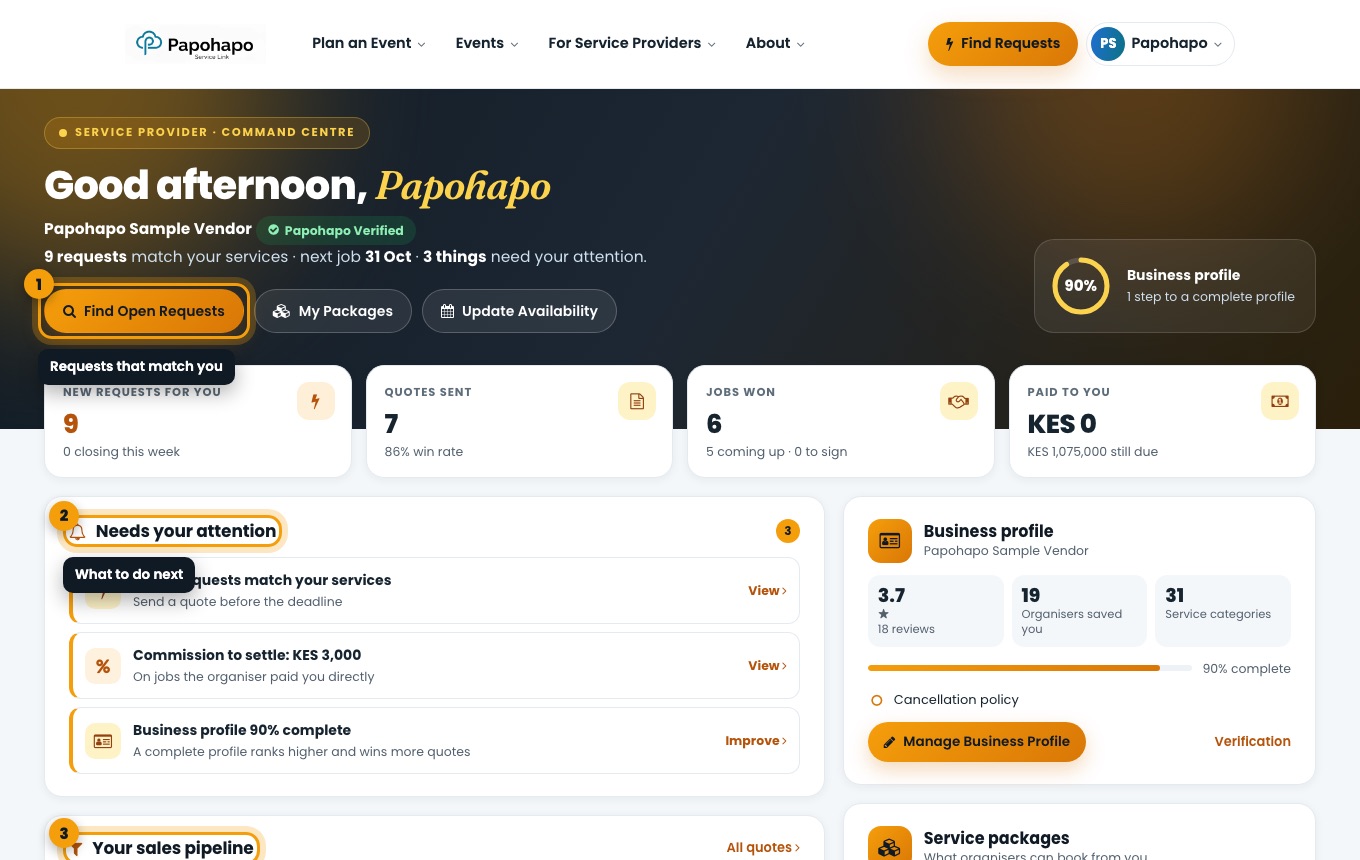
It shows what to do next: new requests, quotes to finish, agreements to sign and money due to you.
How to do it
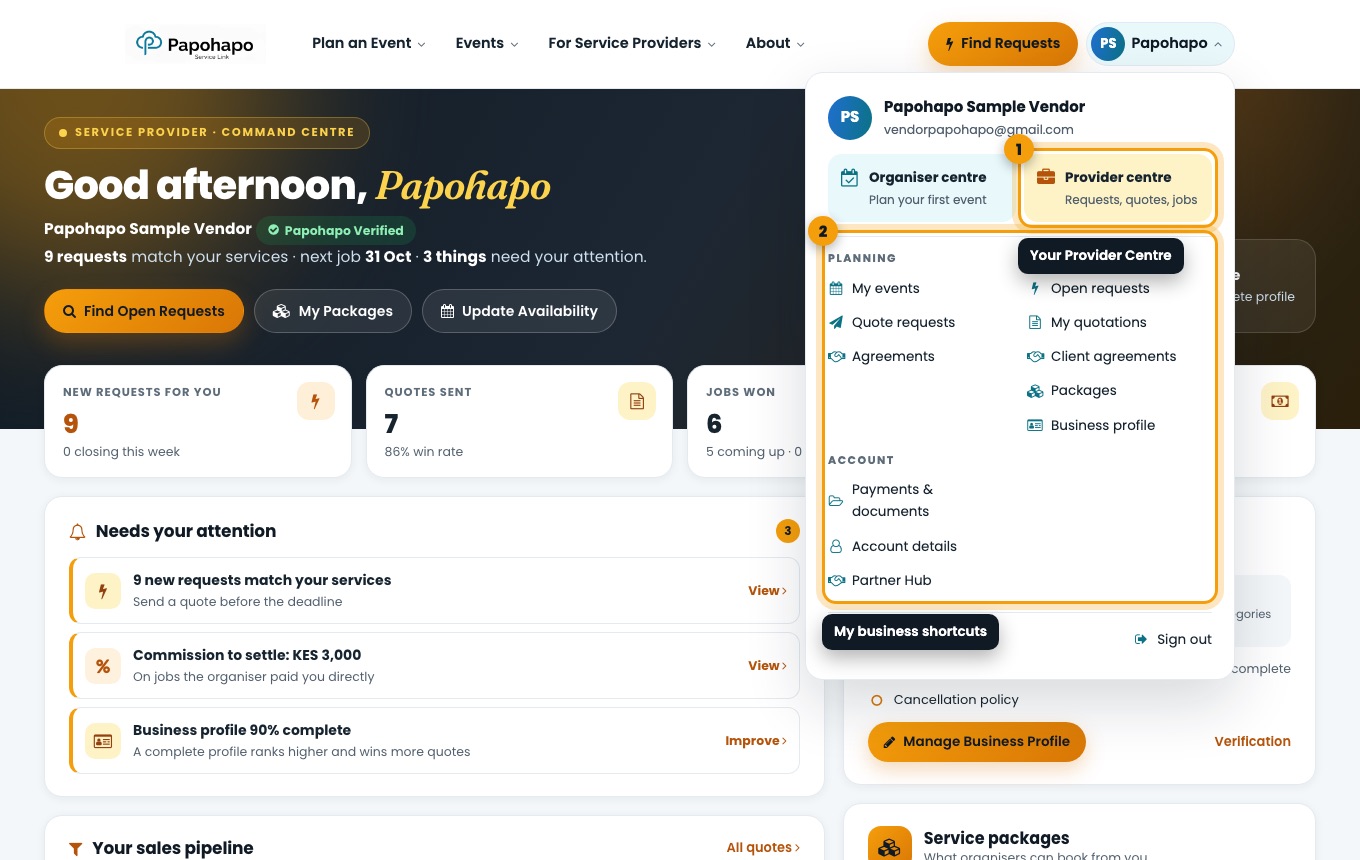
Open it from your name
Choose your name at the top right and select Provider centre, or go to papohapo.com/supplier-view.
The account menu with your business shortcuts. Read the headline numbers
New requests for you, quotes sent, jobs won and money paid to you.
Your Provider Centre. Work through “Needs your attention”
Each item links straight to the right place, for example new requests, commission to settle or your profile.
Follow your sales pipeline
Open requests → quotes sent → shortlisted → selected → won.
What is this?
Your business profile describes your business: where you work, the services you offer, your story, photos, social links and policies.
Why it matters
A complete profile helps organisers choose you when they compare quotes, and it is needed for verification.
How to do it
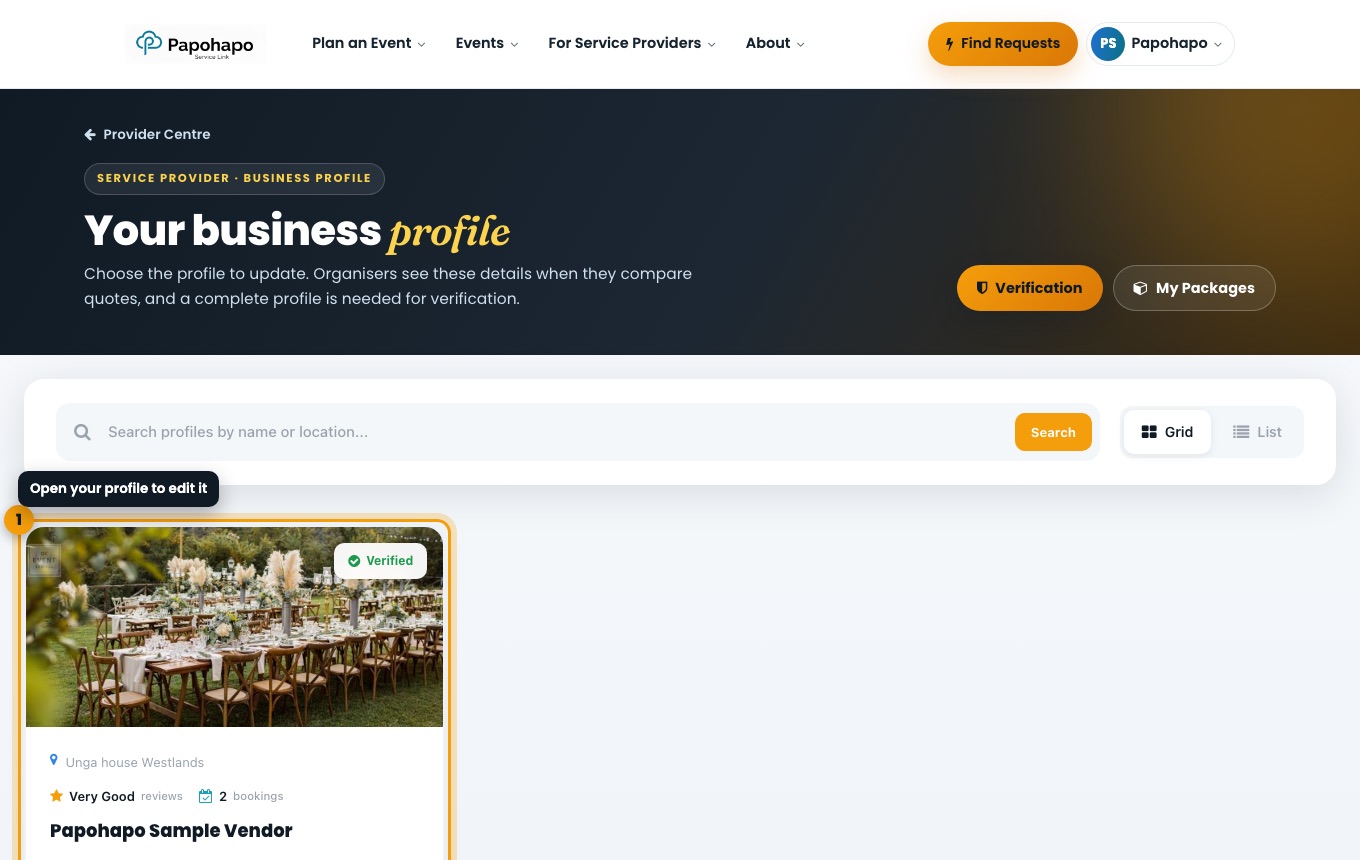
Open your profile
Choose Manage Business Profile in your Provider Centre, or Business profile in the account menu. Open your profile card.
Your business profile. Work through the sections
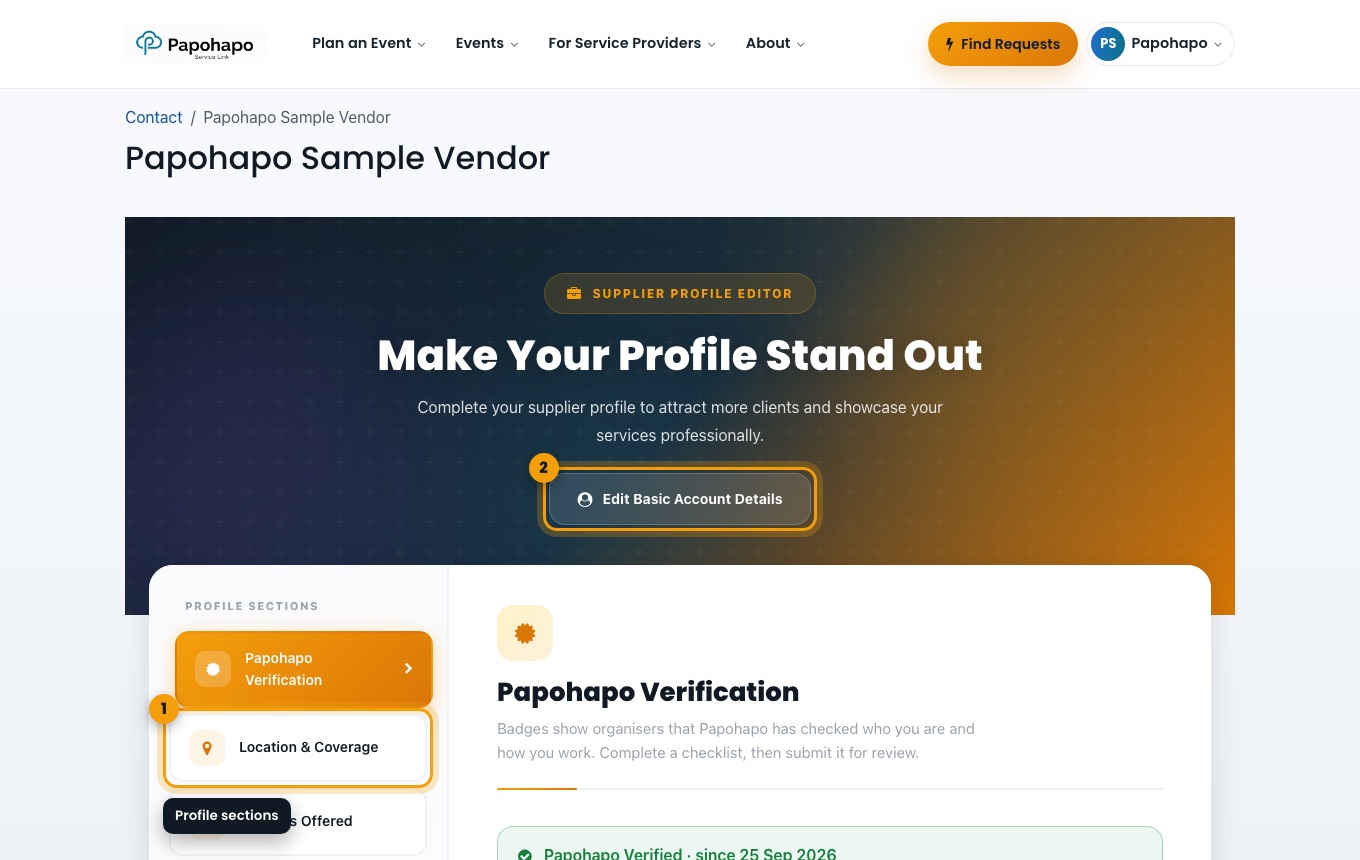
Use the sections on the left: Papohapo Verification, Location & Coverage, Services Offered, Business Profile, Extra Details, Social Links, KYC Verification, Policies and Consent.
The profile editor. Update your account details
Choose Edit Basic Account Details to change your name, phone or email.
Your Provider Centre shows how complete your profile is, and what is missing.
What’s next?
What is this?
Verification badges show organisers that Papohapo has checked who you are and how you work.
Why it matters
Organisers are more comfortable requesting quotes from, and paying deposits to, verified providers.
How to do it
Open Papohapo Verification
In your profile editor, choose Papohapo Verification, or Verification in your Provider Centre.
Complete a checklist
Each level lists what is needed. Choose Add next to a missing item to provide it.
The verification checklists. Submit for review
When a checklist is complete, submit it. Papohapo reviews it and you are notified of the decision.
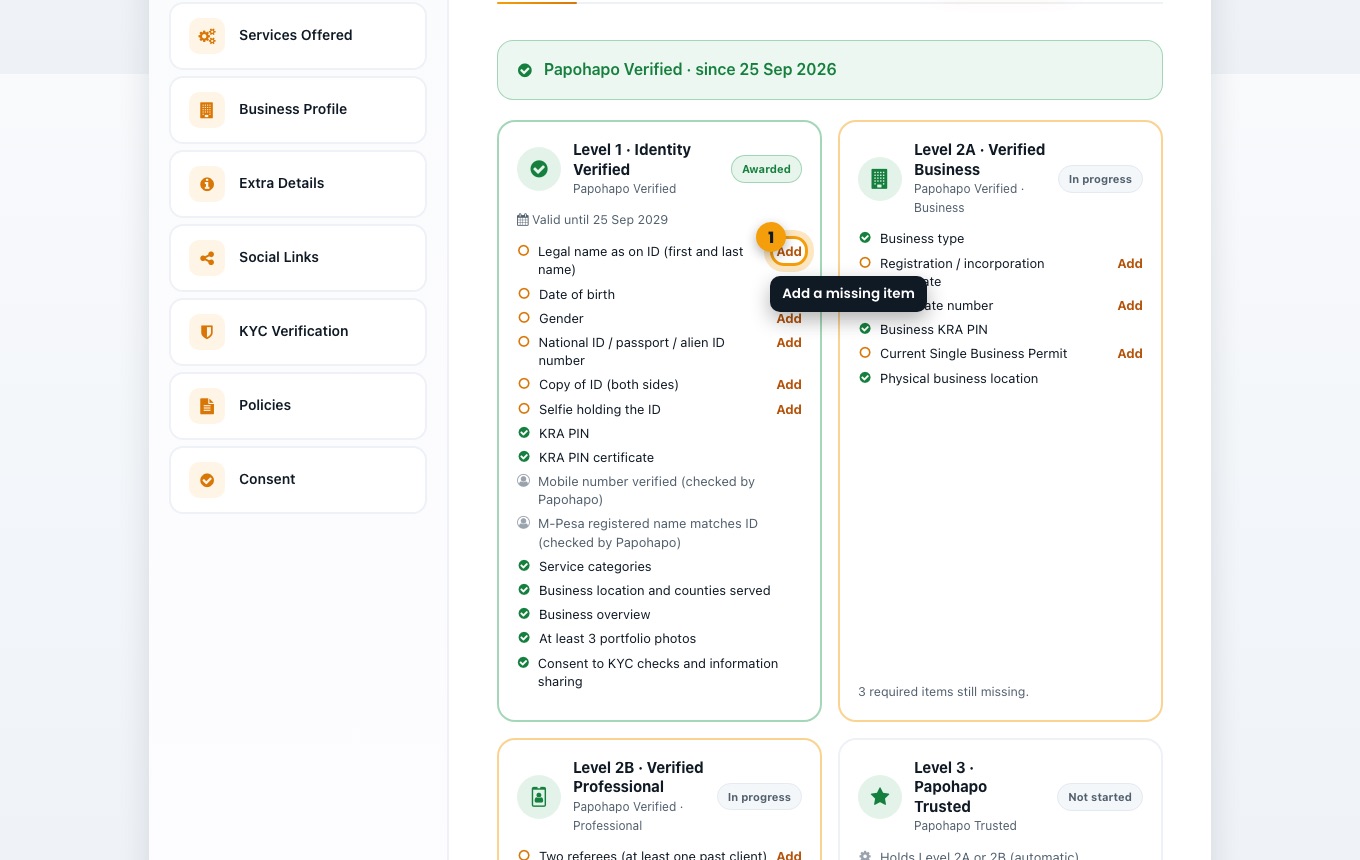
Level 1 · Identity Verified gives the Papohapo Verified badge. Level 2A (Verified Business), 2B (Verified Professional) and 3 (Papohapo Trusted) add more badges. Badges show a valid-until date.
What’s next?
What is this?
A package is a ready-made offer: what is included, optional extras, capacity, availability, payment terms and a starting price.
Why it matters
Organisers can request a quote for a package directly, which is the quickest route to a booking.
How to do it
Open My Packages
Choose My Packages in your Provider Centre.
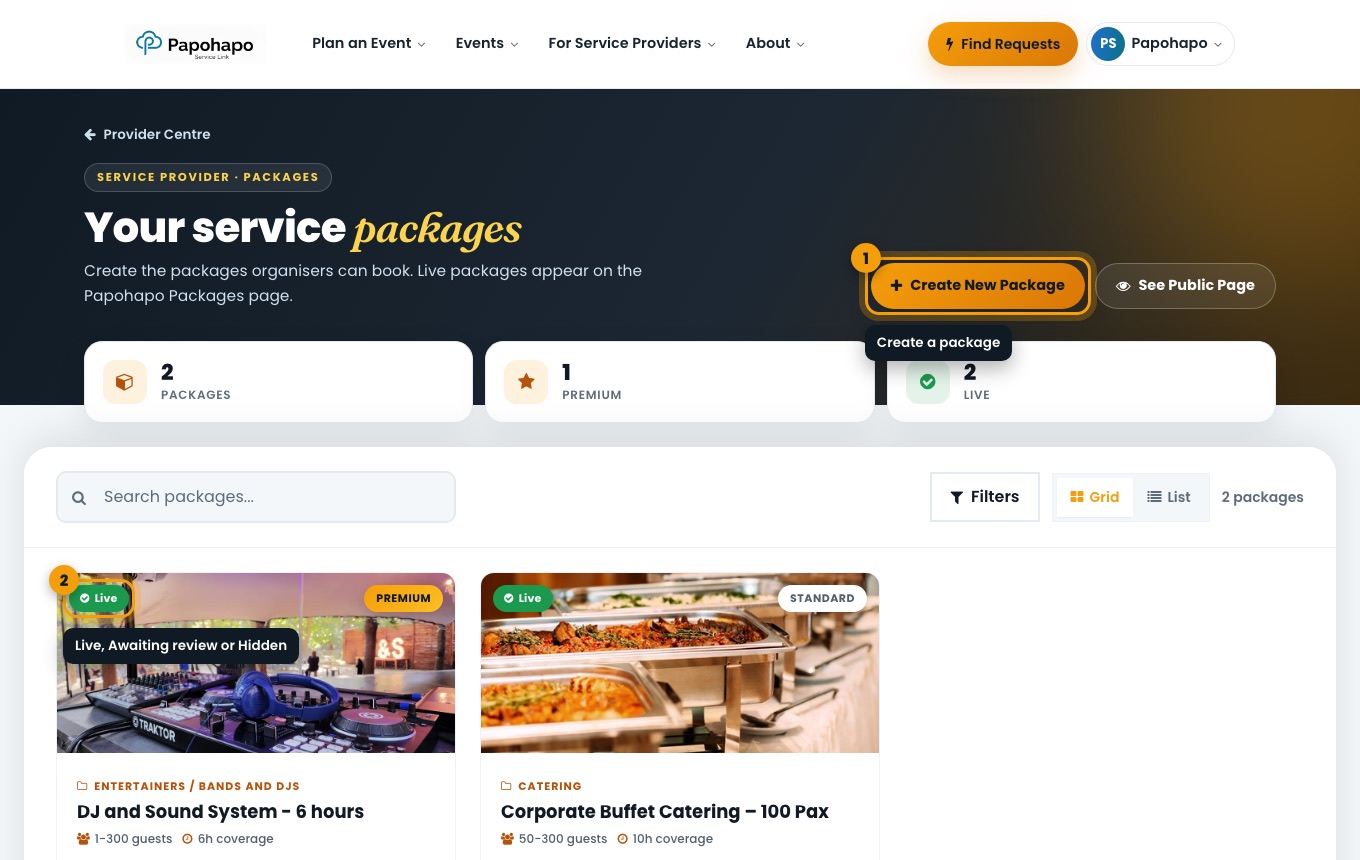
Your service packages. Choose Create New Package
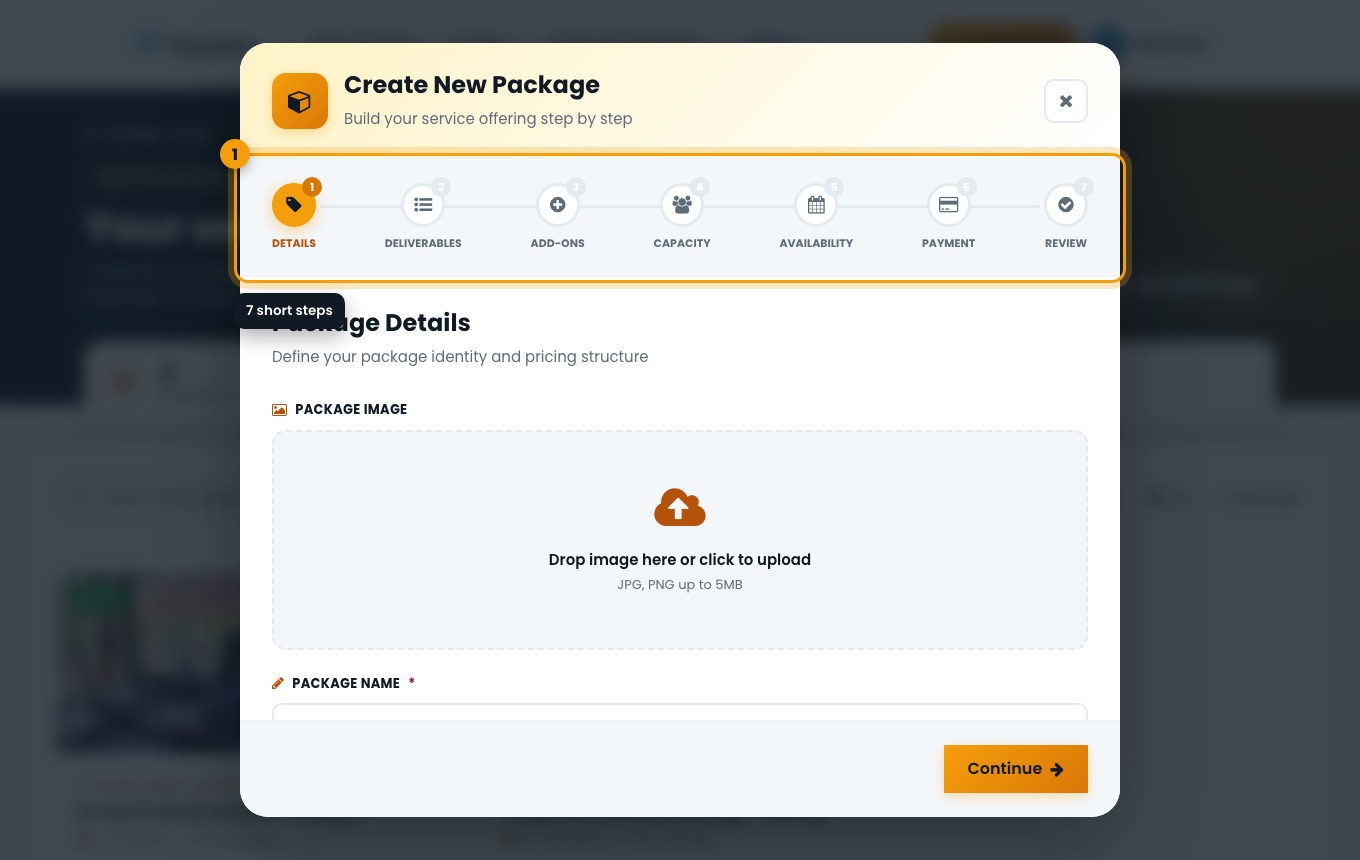
Work through the steps: Details, Deliverables, Add-ons, Capacity, Availability, Payment and Review.
Create New Package. Add a clear photo and name
Use a real photo of your work and a name that says what the package is, for example “DJ and Sound System – 6 hours”.
Review and publish
Check the summary and create the package.
What’s next?
What is this?
Each package card shows its status.
Why it matters
Only Live packages appear on the public Packages page.
How to do it
Live
Published and approved: organisers can see it and request quotes.
Awaiting review
Published, and Papohapo is reviewing it before organisers can see it.
Hidden
Not published. Only you can see it.
Edit a package
Open the package to change details, deliverables, add-ons, availability or payment terms, or to publish or hide it.
What’s next?
What is this?
Your availability tells organisers when you can take bookings.
Why it matters
Organisers check it when they request a package, so accurate dates mean fewer wasted requests.
How to do it
Open My Availability
Choose Update Availability in your Provider Centre.
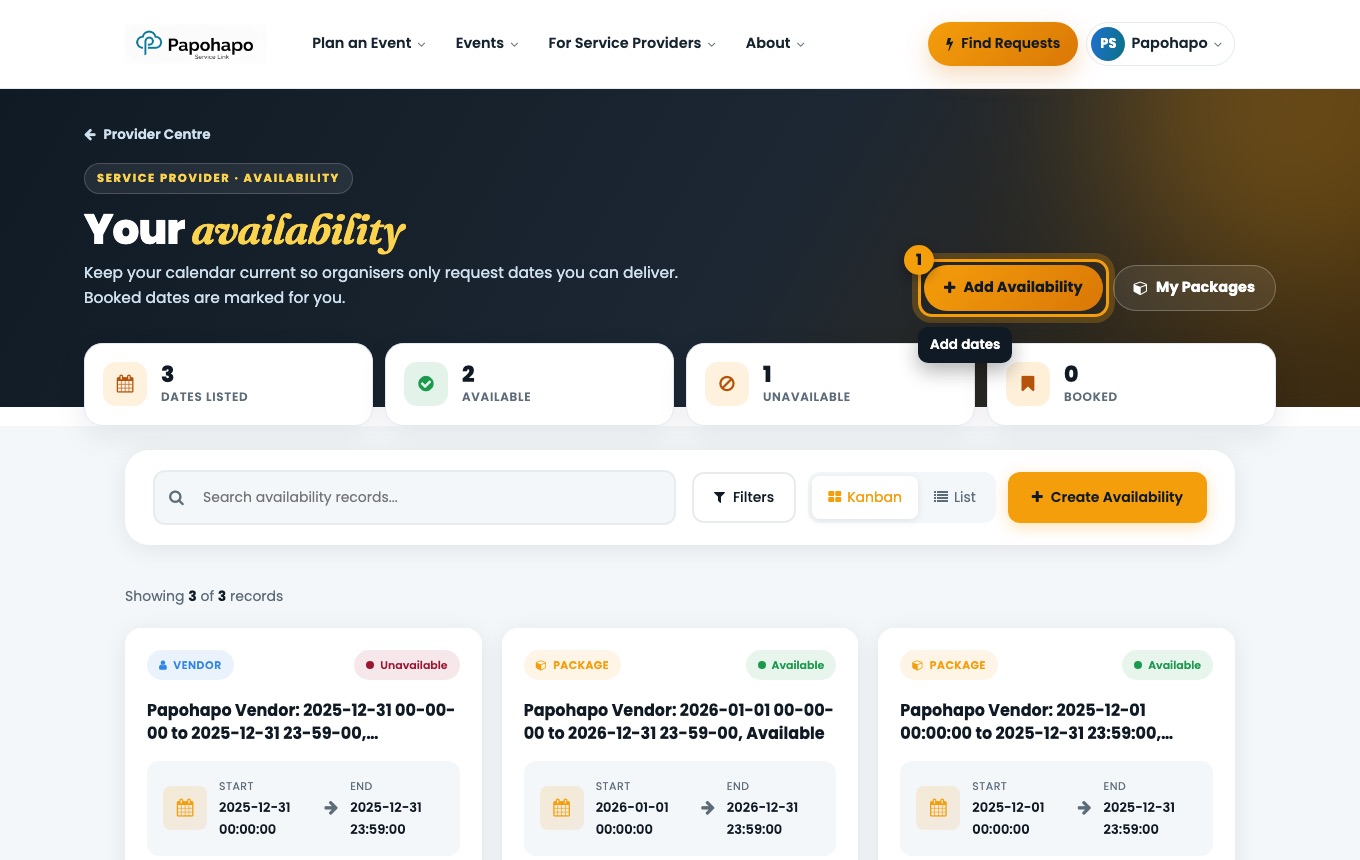
Your availability. Add a period
Choose Add Availability, set the start and end and mark it as available, unavailable or booked.
What’s next?
What is this?
An RFQ is an organiser’s request for quotes for one or more services for their event. It includes the event details and their answers to questions about the service.
Why it matters
It tells you exactly what the organiser needs, so you can quote accurately.
How to do it
Requests that match you
Requests for the services in your profile appear in Open Requests. Matching ones are listed first.
Package requests
When an organiser requests one of your packages, you get an email and the request shows Requested from you.
Deadlines
Each request has a submission deadline. It can close earlier if the organiser contracts a provider.
What’s next?
What is this?
Open Requests lists every request you can quote on.
Why it matters
Quoting early matters: organisers compare offers as they arrive.
How to do it
Open Open Requests
Choose Find Open Requests or Find Requests at the top of the page.
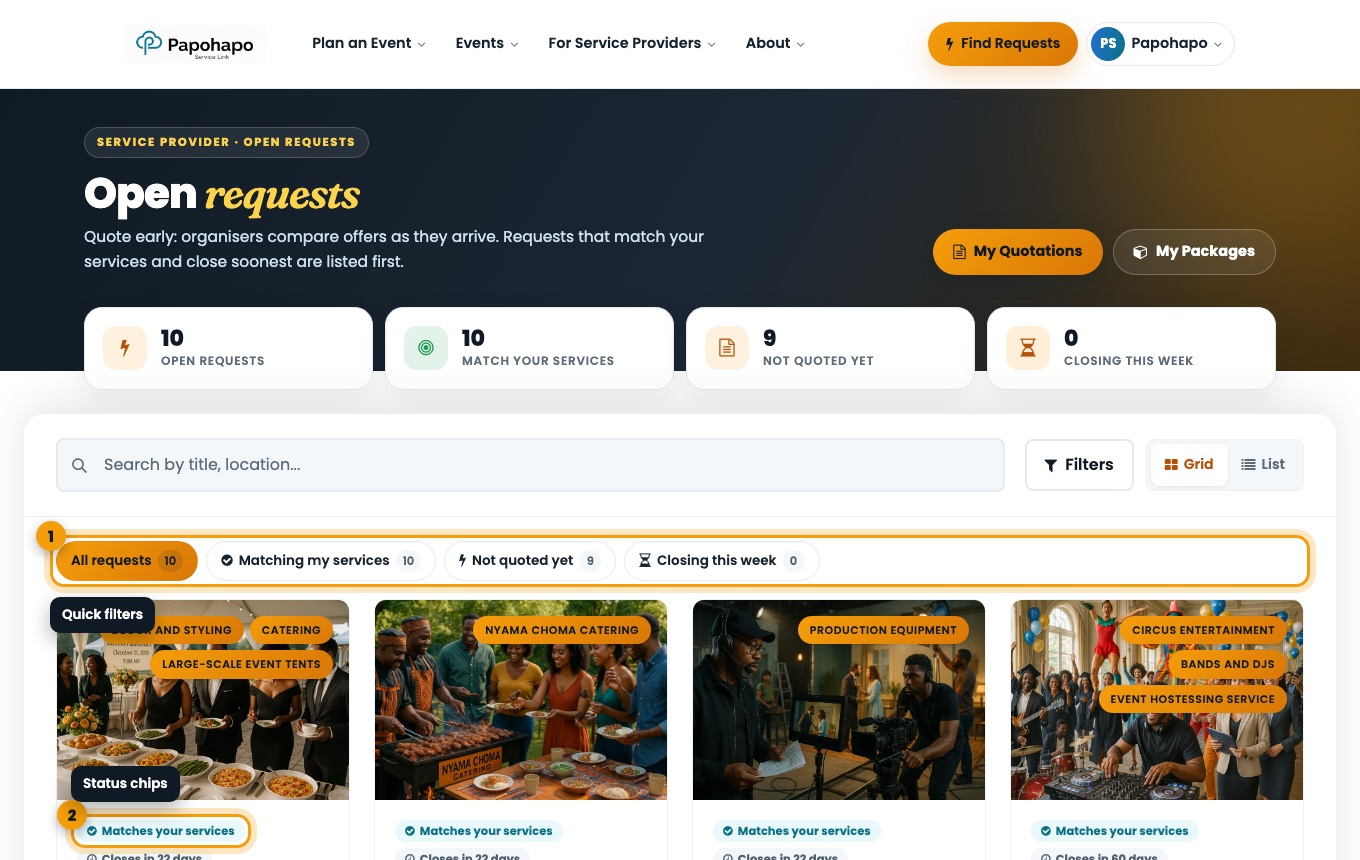
Open requests with quick filters. Filter
Use All requests, Matching my services, Not quoted yet and Closing this week.
Read the chips
Cards show “You quoted”, “Draft started”, “Matches your services” and how many days until the request closes.
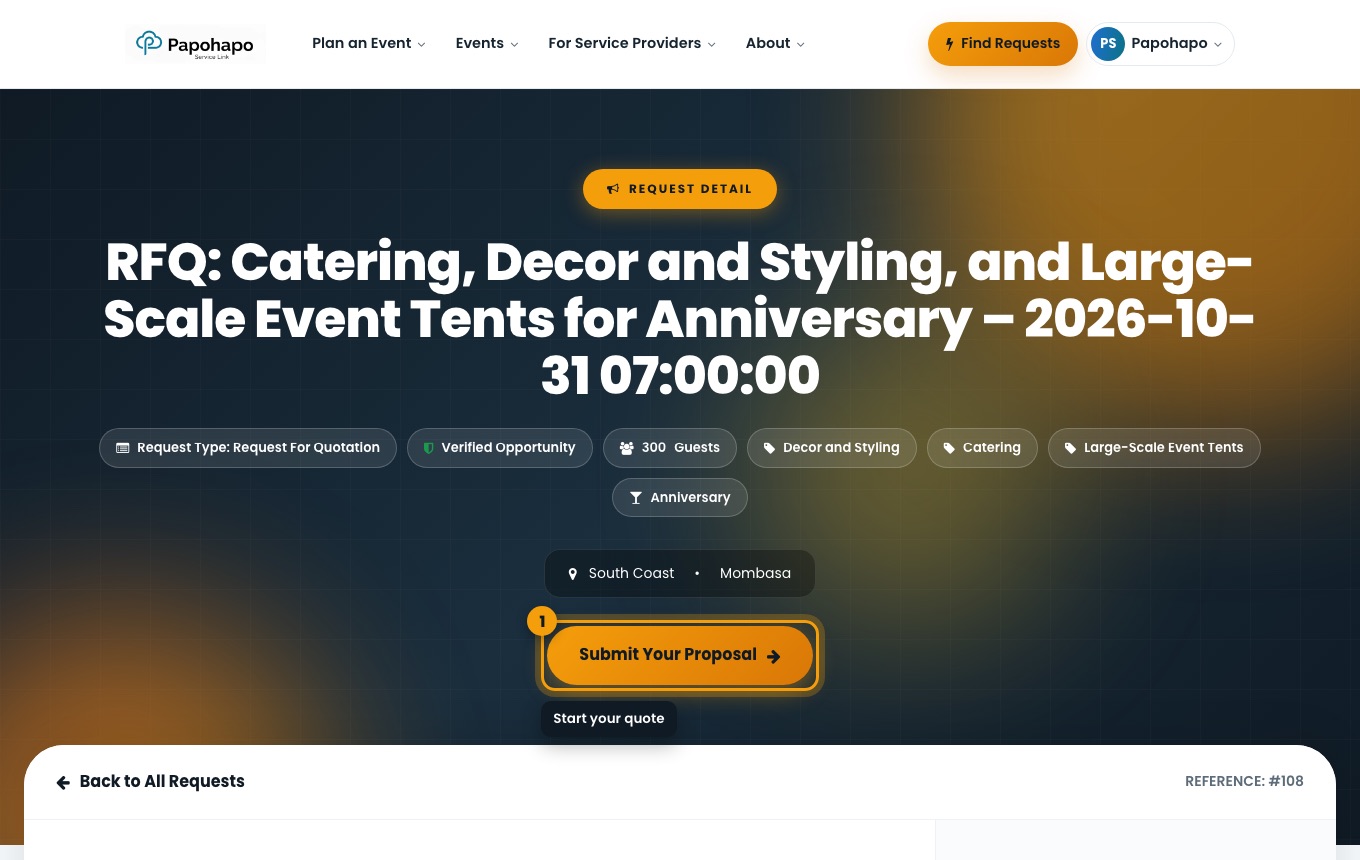
Open a request
Read the requirements and event details, then choose Submit Your Proposal.
A request in detail.
What’s next?
What is this?
Your quote answers the organiser’s questions step by step and ends with your cost.
Why it matters
Clear, complete answers make your quote easy to compare and accept.
How to do it
Open the quote form
From the request, choose Submit Your Proposal.
The quote form with its progress steps. Answer each step
Work through the sections and choose Continue. Use Save Draft to finish later.
Cost & Submit
Enter your price and anything else the organiser should know, then submit.
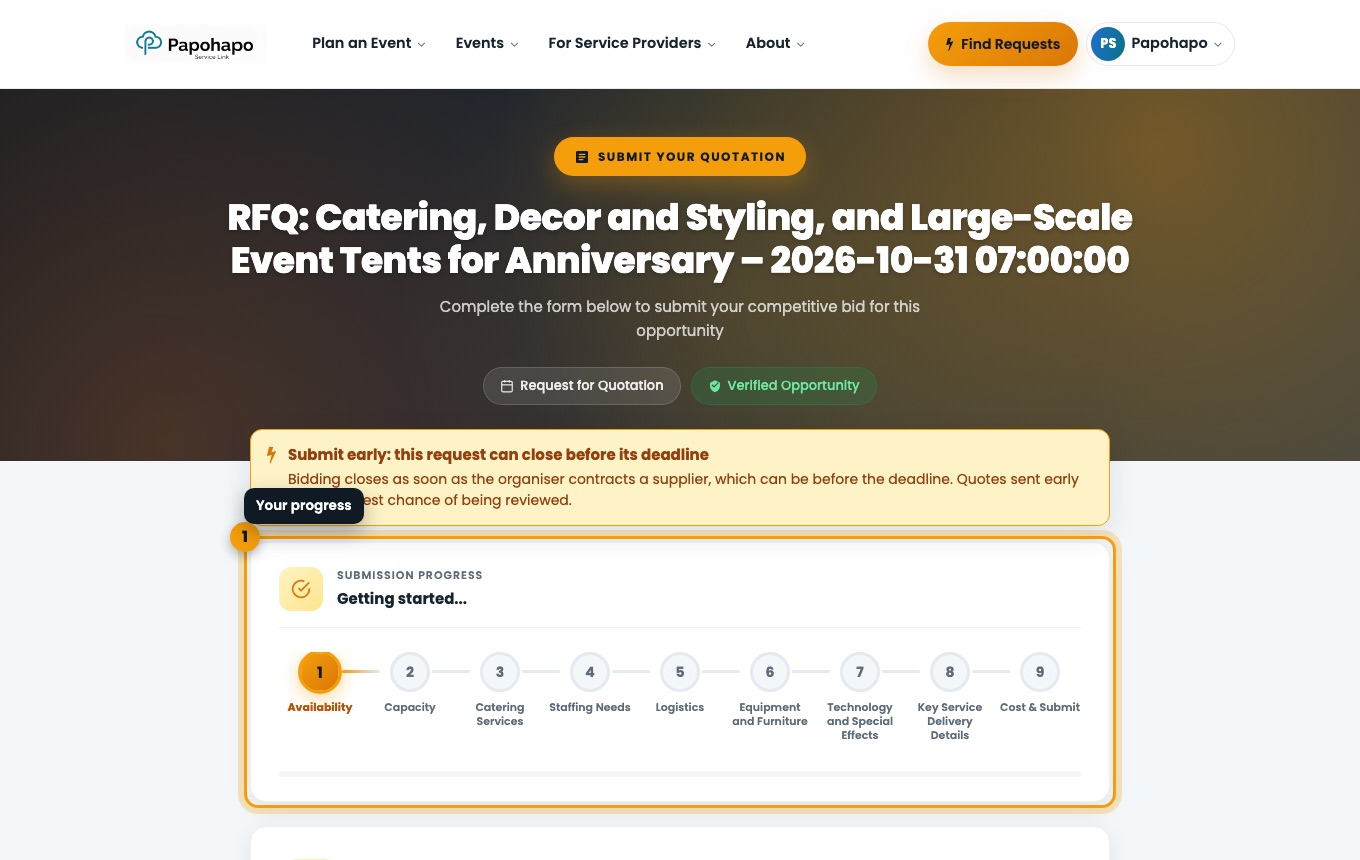
Submit early: a request can close before its deadline once the organiser contracts a provider.
Quoting is free. A commission applies only if you win.
What’s next?
What is this?
My Quotations lists every quote you have sent and its review stage.
Why it matters
You can see where each opportunity stands and which jobs you have won.
How to do it
Open My Quotations
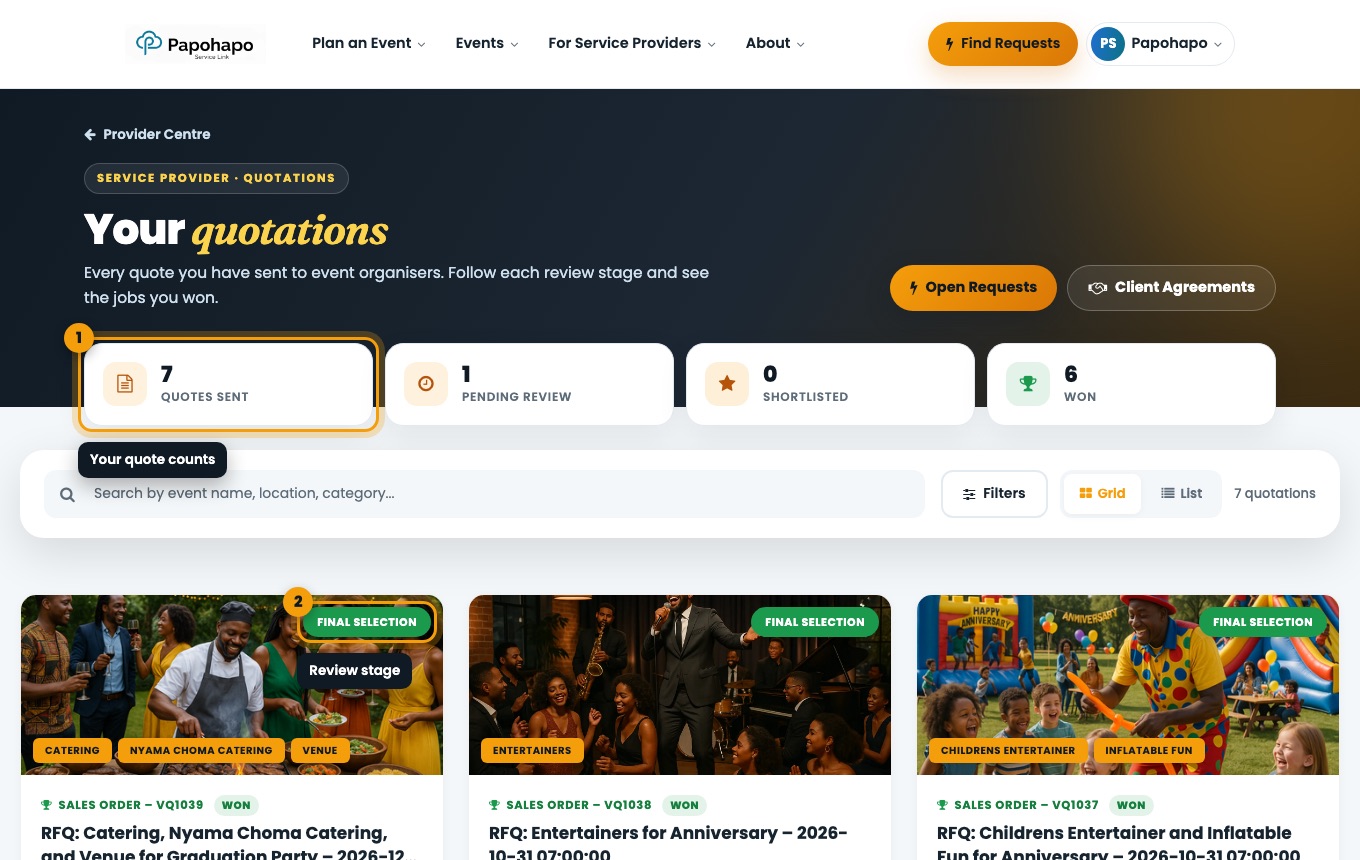
Choose My quotations in the account menu.
Your quotations. Read the stage
Received, Under Review, Shortlisted, Negotiation or Final Selection.
Spot your wins
Won quotes show Sales Order – VQ… once the agreement is signed.
What’s next?
What is this?
When an organiser selects your quote, they prepare a service agreement and share it with you for review.
Why it matters
It sets out what you will deliver, the price and when you will be paid, so read it carefully before signing.
How to do it
Open the agreement
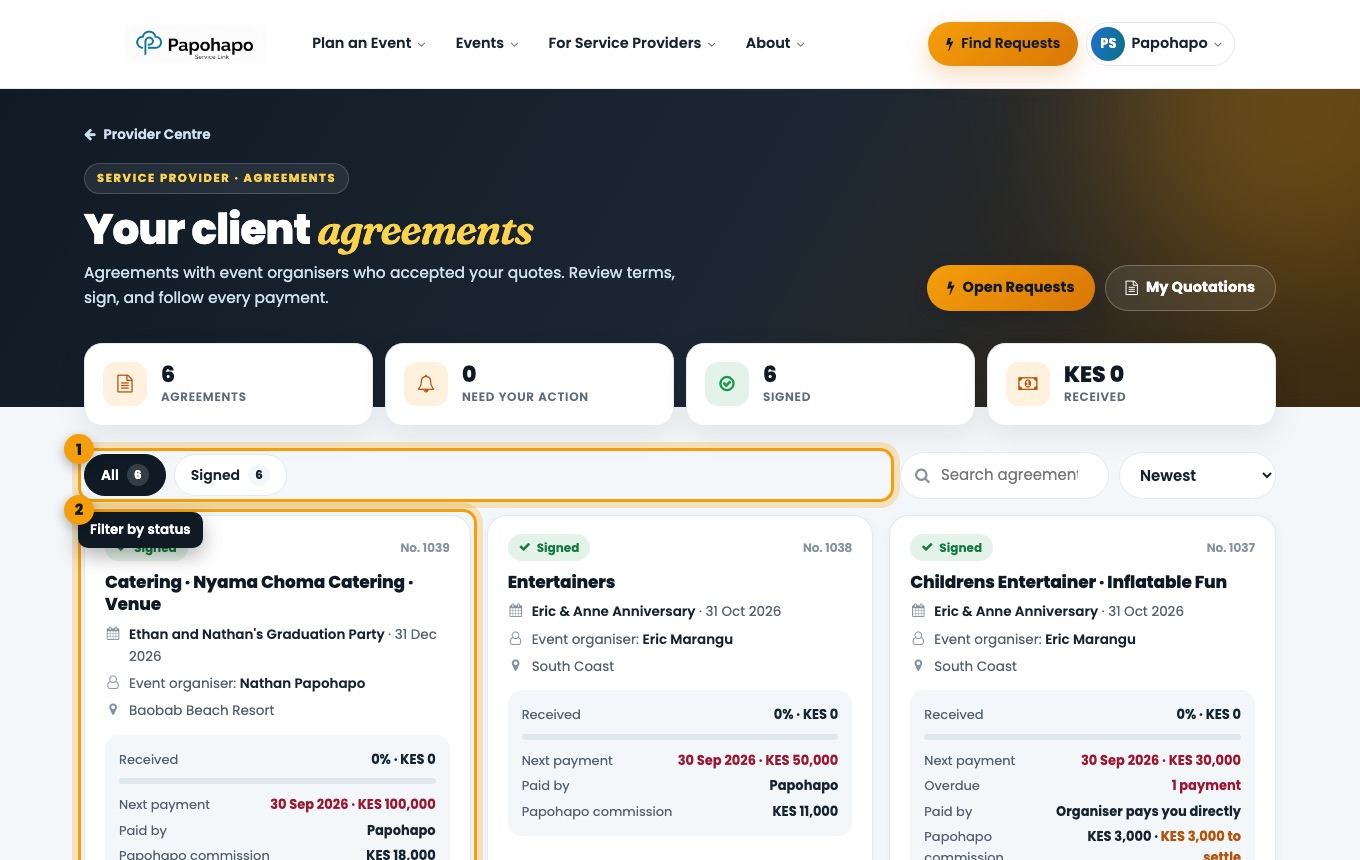
You receive an email. You can also open it from Client agreements or your Provider Centre.
Your client agreements. Check the stage
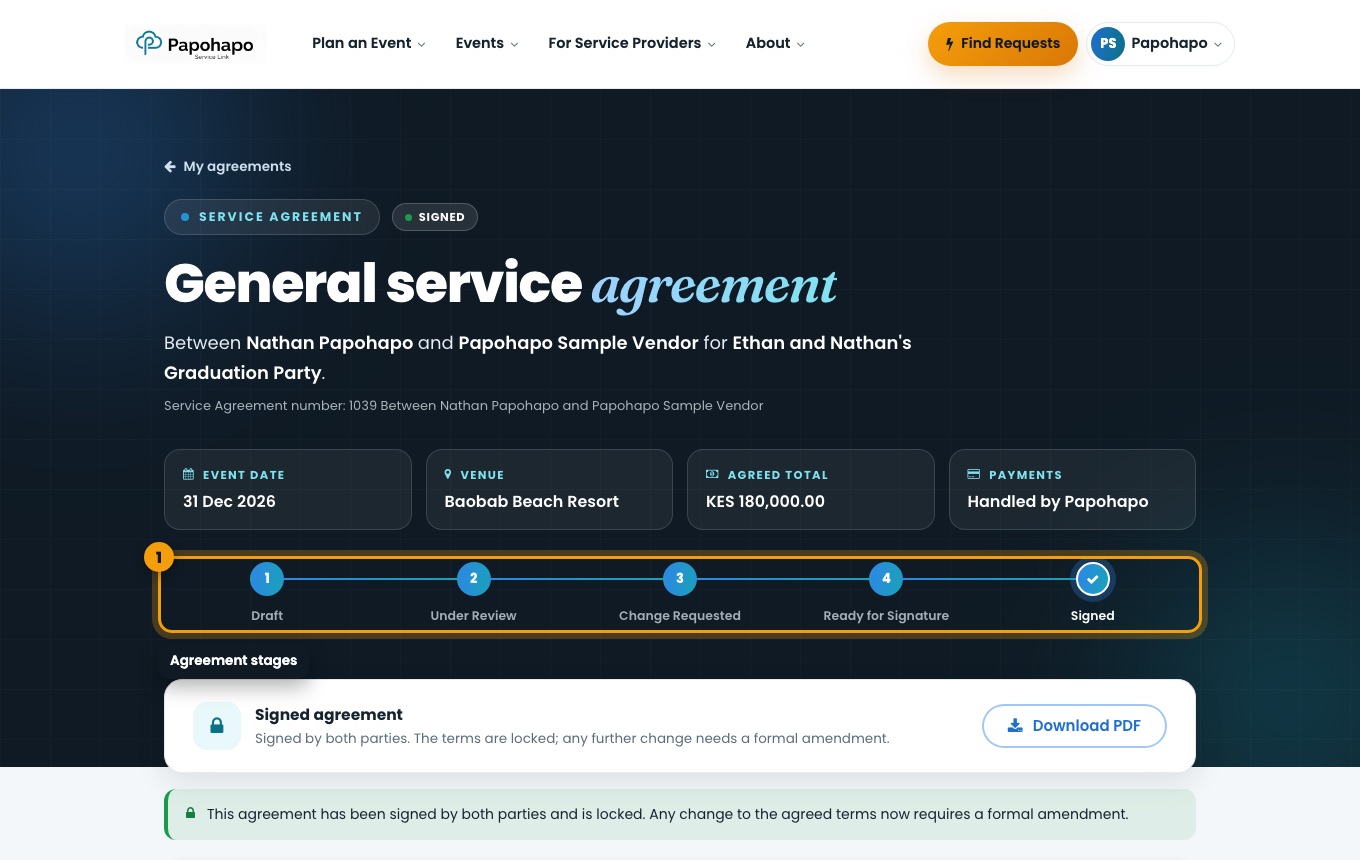
The tracker shows Draft, Under Review, Change Requested, Ready for Signature or Signed.
An agreement and its stage tracker. Read every section
Event details, services, pricing, payment arrangement, payment schedule, deliverables, responsibilities and terms.
What’s next?
What is this?
While an agreement is under review, you can suggest a change to any section.
Why it matters
If something is wrong or missing, fix it before you sign.
How to do it
Choose Suggest a Change
On the section you want to change, choose Suggest a Change and describe it.
Wait for the organiser
The agreement moves to Change Requested. The organiser accepts or declines each suggestion, and you are emailed.
Every suggestion and decision is kept in the agreement history at the end of the agreement.
What’s next?
What is this?
When the organiser confirms the final terms, the agreement is Ready for Signature.
Why it matters
The job is confirmed only when both parties have signed.
How to do it
Open the signature section
Scroll to Final Confirmation & Signatures.
Sign
Sign in your box and confirm. We remind the other party if they have not signed.
Keep a copy
Choose Download PDF.
After both parties sign, the terms are locked and any change needs a formal amendment.
What’s next?
What is this?
Each signed agreement has a payment schedule. The agreement also says who pays you: Papohapo or the organiser directly.
Why it matters
You know exactly what is due, when, and how much you will receive.
How to do it
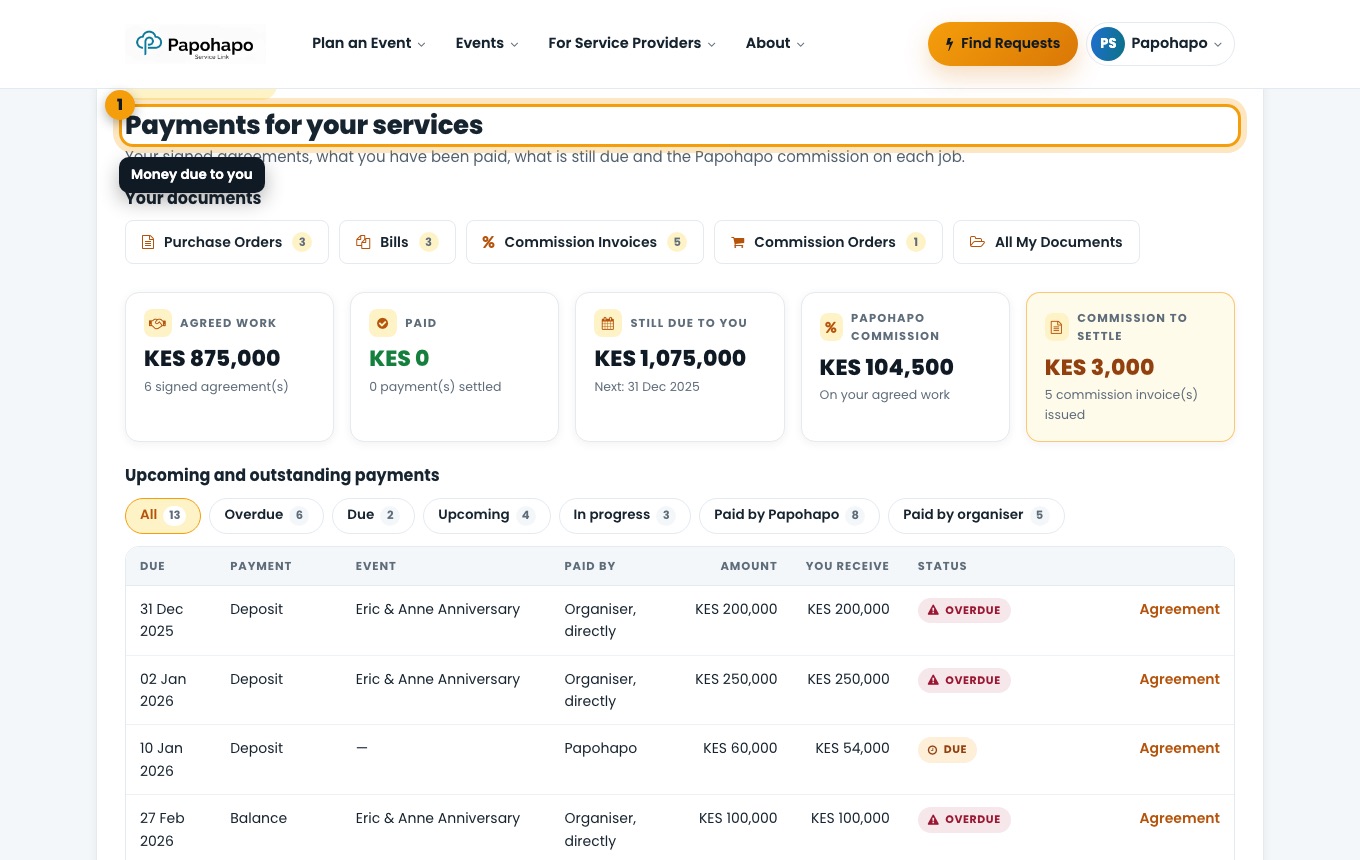
See money due to you
In your Provider Centre, open Payments for your services: agreed work, paid, still due to you and commission.
Payments for your services. Check each agreement
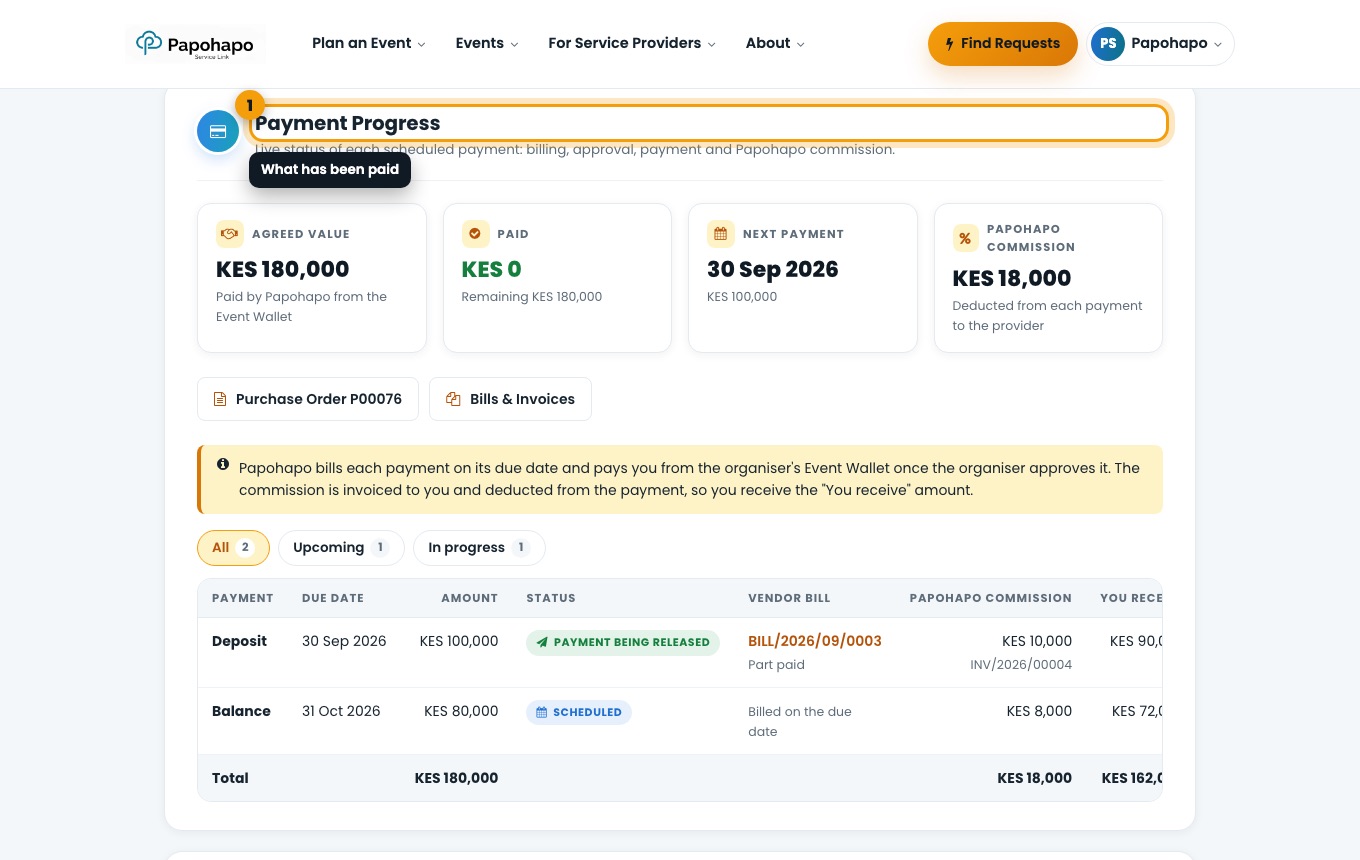
The Payment Progress section of an agreement shows every payment and its status.
Payment progress on an agreement.
What is this?
If the agreement says payments are handled by Papohapo, Papohapo pays you from the organiser’s Event Wallet.
Why it matters
Payments follow the schedule and are released once the organiser approves them.
How to do it
Purchase order
When the agreement is signed, Papohapo issues a purchase order for the agreed work.
Bill on the due date
Each payment is billed on its due date and sent to the organiser for approval.
Payout
Once approved, Papohapo pays you. Papohapo’s commission is invoiced to you and deducted, so you receive the “You receive” amount.
What’s next?
What is this?
If the organiser handles payments, they pay you directly by the agreed dates.
Why it matters
Papohapo issues a commission invoice for the job, which you settle.
How to do it
Receive payment
The organiser pays you as set out in the payment schedule.
Settle the commission
Your Provider Centre shows Commission to settle. Open it to see and pay the invoice.
What’s next?
What is this?
Papohapo shares purchase orders, bills and commission invoices with you.
Why it matters
You have a record of every job and payment for your own accounts.
How to do it
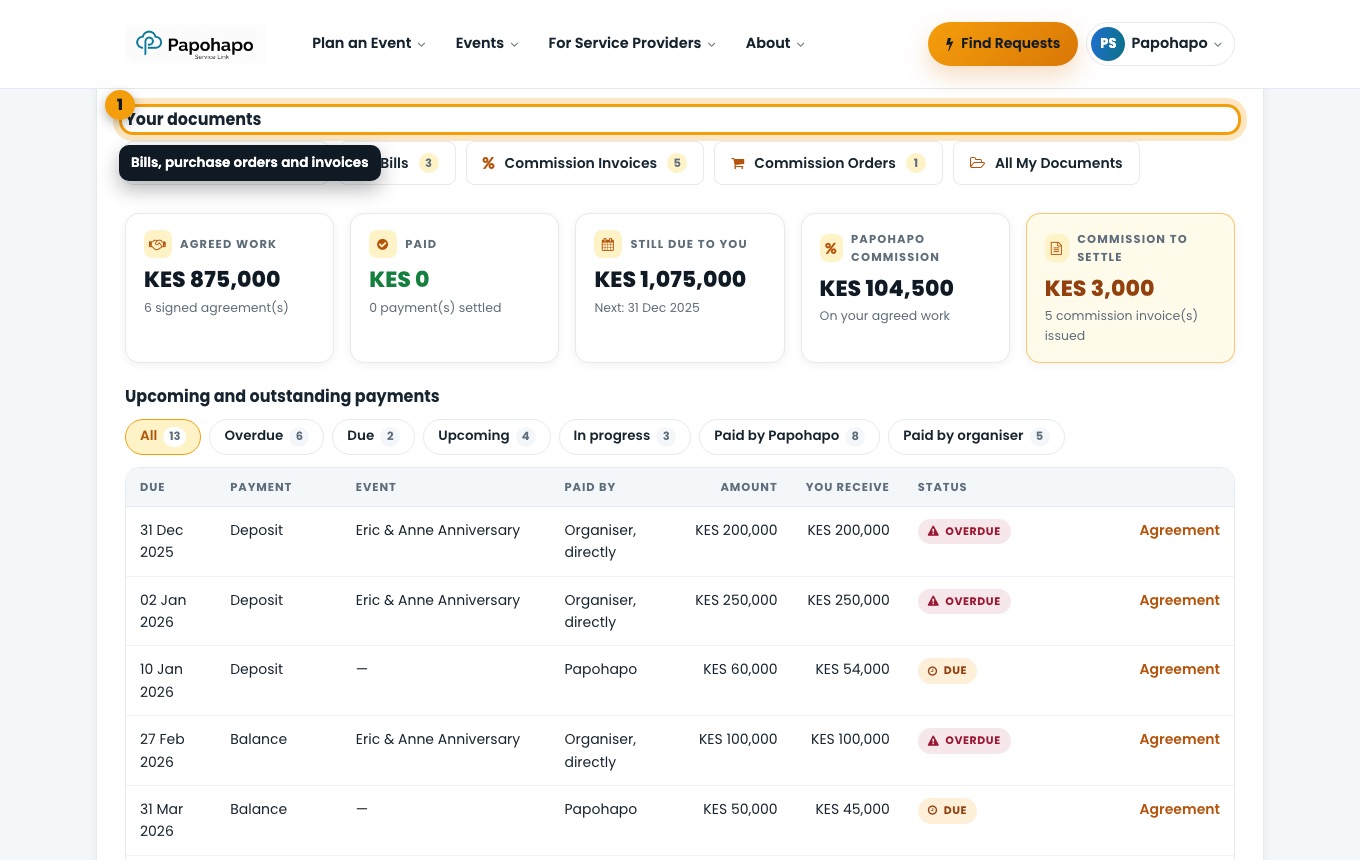
Open Your documents
In your Provider Centre, use Your documents: Purchase Orders, Bills, Commission Invoices, Commission Orders and All My Documents.
Your documents. Open a document
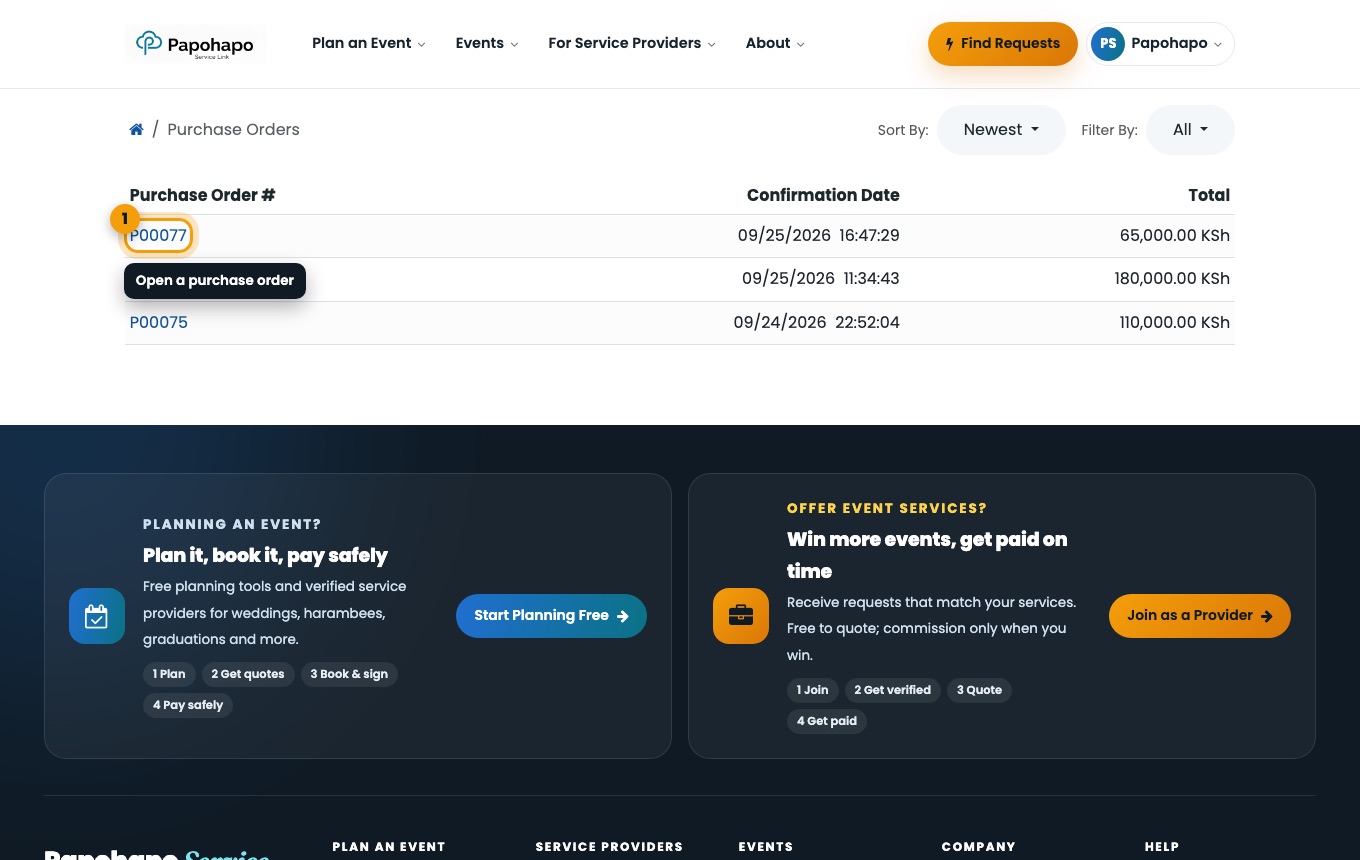
Open any document to view or download it.
Purchase orders in your account.
What’s next?
What is this?
Your Provider Centre brings together everything active: requests, quotes, upcoming jobs and payments.
Why it matters
Acting quickly on requests and agreements wins more work and keeps payments on schedule.
How to do it
Check “Needs your attention” daily
It lists new requests, agreements to sign and commission to settle.
Watch upcoming jobs
See your next events, how many days to go and how much has been paid.
Read our emails
We email you about package requests, agreements to review or sign, and payments. All emails come from info@papohapo.com.
What’s next?
What is this?
My account holds your account details and documents.
Why it matters
Keep your contact details current so organisers and Papohapo can reach you.
How to do it
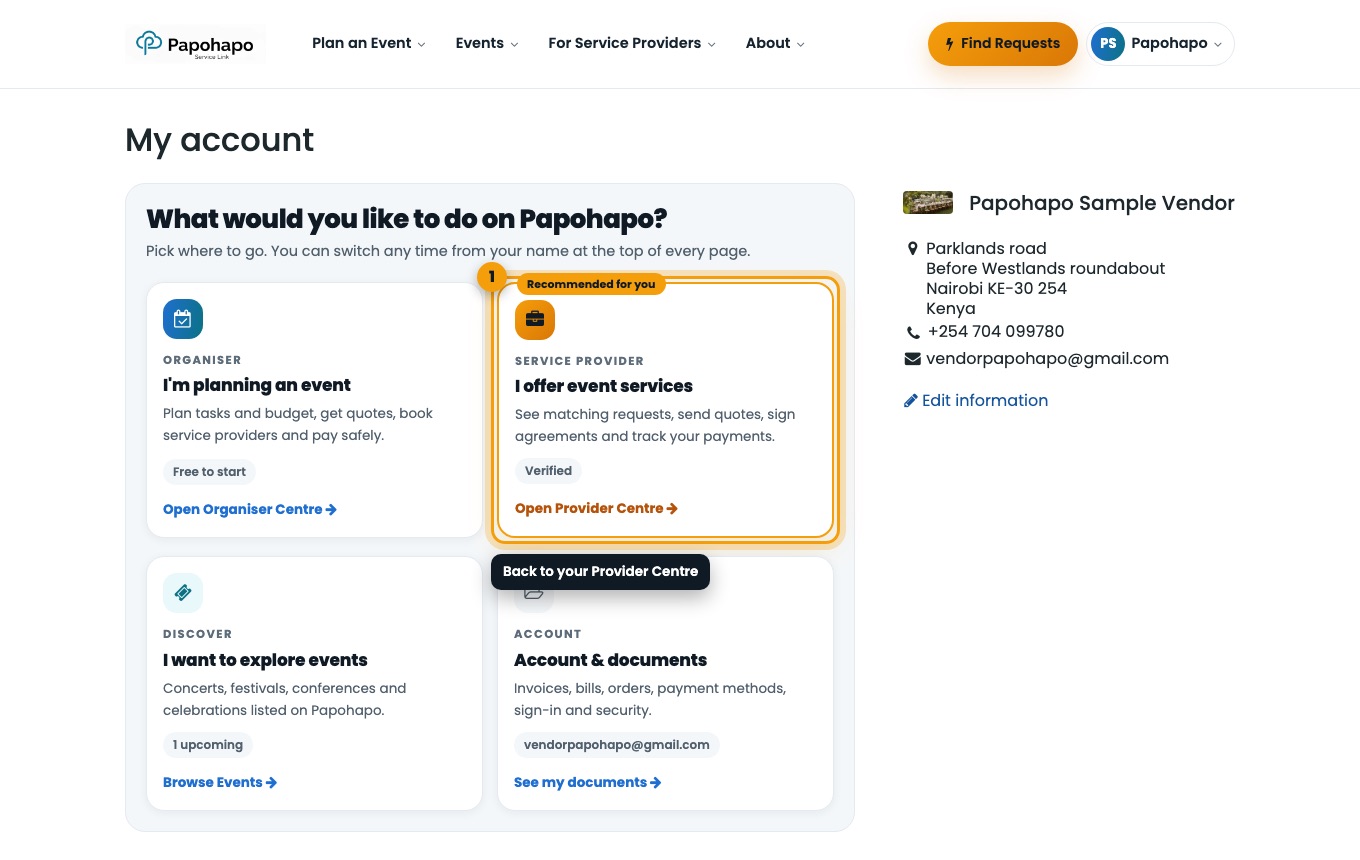
Open My account
Choose your name, then Account details or Payments & documents.
My account. Go back to your business
Choose I offer event services to return to your Provider Centre.
What’s next?
Joining and quoting are free. Papohapo charges a commission only on jobs you win. It is shown on each agreement.
Open your profile, choose Papohapo Verification, complete a checklist and submit it for review. See Get Papohapo Verified.
Requests close on their deadline, or earlier once the organiser contracts a provider. Private package requests are only visible to the provider they were sent to.
Open the request in Open Requests and choose Submit Your Proposal. See Submit your quote.
Yes. Choose Save Draft in the quote form. The request then shows “Draft started”.
While it is under review, choose Suggest a Change on the section. The organiser accepts or declines it. See Suggest changes to an agreement.
On the dates in the agreement’s payment schedule. If Papohapo pays you, each payment is released once the organiser approves it. See How you get paid.
In your Provider Centre under Payments for your services, and on each agreement under Payment Progress.
Papohapo reviews new packages before organisers can see them. Once approved, the status changes to Live.
On jobs where the organiser paid you directly, Papohapo issues a commission invoice for you to pay. See When the organiser pays you directly.
Emails come from info@papohapo.com. Check your spam or promotions folder and add the address to your contacts.
Use Reset password with the email you registered with.